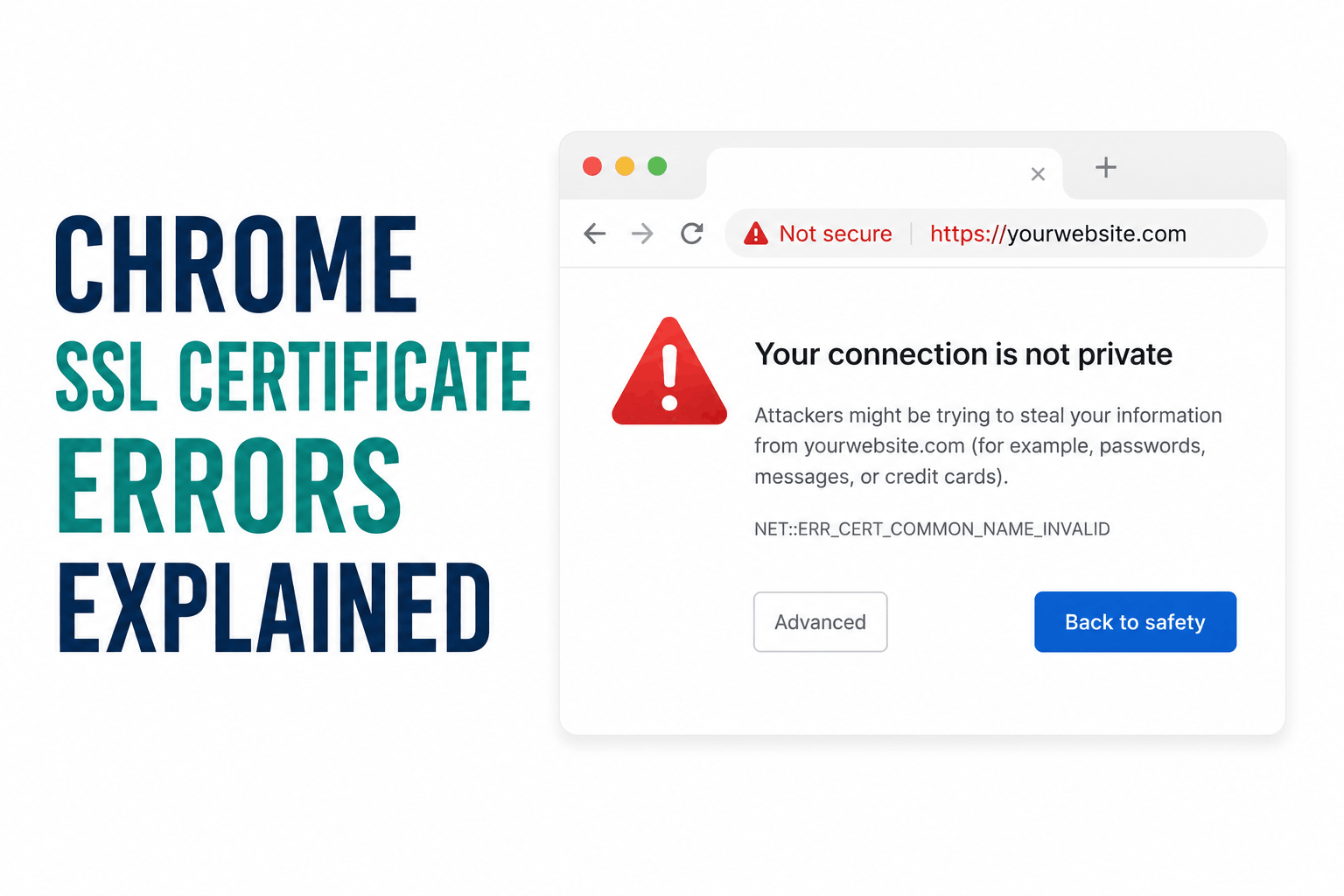
Chrome does not show one SSL error. It shows at least a dozen distinct error codes, each pointing to a different layer of the problem: the certificate itself, the server configuration, the trust chain, or something specific to the visitor’s device. Most guides treat all of them as the same problem and offer the same generic fixes in response.
The right starting point is understanding which of these two situations you are in. If you are a visitor seeing the error while trying to reach someone else’s site, almost every SSL error originates on the server side and there is usually very little you can do except check your device clock, try a different network, or report the problem to the site owner. If you are a site owner or developer seeing the error on your own site, the error code is a precise technical diagnosis pointing to a specific misconfiguration that you can fix.
This guide covers every major Chrome SSL error code, what it means at the protocol level, who needs to fix it, and the exact steps to take. It also covers the small set of client-side device issues that can produce SSL warnings even on properly configured sites.
A Chrome SSL warning does not automatically mean the site is dangerous. It means Chrome’s certificate validation failed for a specific reason. Understanding that reason determines whether you should proceed, report the problem, or fix your server configuration.
What Chrome Actually Checks During Certificate Validation
Before displaying any error, Chrome runs the certificate through a series of checks during the TLS handshake. Each check maps to a specific error code when it fails. Understanding the sequence explains why each error code means something different.
| Chrome’s Check | What It Verifies | Error if It Fails |
| Hostname match | Does the certificate’s Common Name or Subject Alternative Names include the exact domain being visited? | NET::ERR_CERT_COMMON_NAME_INVALID |
| Validity period | Is the current date and time within the certificate’s Not Before and Not After dates? | NET::ERR_CERT_DATE_INVALID |
| Chain of trust | Can Chrome trace the certificate through intermediates to a trusted root CA in its trust store? | NET::ERR_CERT_AUTHORITY_INVALID |
| Revocation status | Has the certificate been revoked by the issuing CA? | NET::ERR_CERT_REVOKED |
| Transparency log | Is the certificate logged in a public Certificate Transparency log? | NET::ERR_CERTIFICATE_TRANSPARENCY_REQUIRED |
| Protocol version | Does the server offer TLS 1.2 or TLS 1.3? (TLS 1.0 and 1.1 are disabled in Chrome) | ERR_SSL_VERSION_OR_CIPHER_MISMATCH |
| Cipher suite | Do the server’s offered cipher suites include at least one Chrome considers acceptable? | ERR_SSL_VERSION_OR_CIPHER_MISMATCH |
| Key usage | Does the certificate’s key usage extension permit the operations being requested? | ERR_SSL_VERSION_OR_CIPHER_MISMATCH (sometimes) |
Checks fail in this sequence. Chrome stops at the first failure and displays the corresponding error. That means a certificate with both an expired date and an untrusted chain shows NET::ERR_CERT_DATE_INVALID because date is checked earlier in the sequence, not the chain error. Fixing the first error may reveal a second one.
NET::ERR_CERT_AUTHORITY_INVALID
Chrome cannot trace the certificate’s chain of trust to a trusted root CA. This is the most common SSL error and it has three distinct causes, each requiring a completely different fix.
Cause 1: Missing intermediate certificate (server-side)
Most SSL certificates are not signed directly by a root CA. The root CA signs an intermediate CA, and the intermediate CA signs your certificate. Your server must present both your certificate and the intermediate certificate in the correct order during the TLS handshake. If the intermediate is missing from your server’s certificate bundle, Chrome cannot build the chain back to the root and reports ERR_CERT_AUTHORITY_INVALID.
This is the most common cause. Test it at ssllabs.com/ssltest. If you see an incomplete chain warning or a grade deduction for chain issues, the intermediate certificate is missing from your server configuration. The fix is downloading the intermediate certificate from your CA’s website and adding it to your certificate bundle. Every CA provides a download link for their intermediate certificates.
| # Verify the certificate chain from the command line:
openssl s_client -connect yourdomain.com:443 -showcerts
# If only one certificate appears in the output (your leaf cert), # the intermediate is missing. You should see 2 or 3 certificates.
# In Nginx, the correct ssl_certificate file contains: # 1. Your domain certificate # 2. Intermediate certificate(s) # Concatenate them in order: cat yourdomain.crt intermediate.crt > bundle.crt # Then reference bundle.crt in ssl_certificate directive
# In Apache, set SSLCertificateChainFile to the intermediate cert path # (Apache 2.4.8+ uses SSLCertificateFile for the full chain bundle) |
Cause 2: Self-signed certificate (server-side)
A self-signed certificate is one where the issuer and the subject are the same entity. The certificate was not issued by any recognized CA. Since Chrome’s trust store only contains certificates from publicly trusted CAs, it cannot validate a self-signed certificate and reports NET::ERR_CERT_AUTHORITY_INVALID for every visitor.
Self-signed certificates are appropriate for internal development environments and private networks where you control every machine and can install the certificate into the local trust store manually. They are not appropriate for any public-facing site. The fix is replacing the self-signed certificate with one issued by a trusted CA. Let’s Encrypt provides free DV certificates with automatic renewal. Paid CAs provide OV and EV options.
Cause 3: Device trust store problem (visitor-side)
If the certificate chain is complete and the CA is publicly trusted but the error still appears, the visitor’s device trust store may be outdated. Operating systems ship with a set of trusted root CA certificates and update them through system updates. A device that has not received OS updates in years may be missing root certificates for CAs that were added to the trust program after the last update. The fix is running all available operating system updates.
If NET::ERR_CERT_AUTHORITY_INVALID appears on a major, well-known website such as a bank or large e-commerce site, and the error appears only for you and not for other users, the cause is almost certainly local: your device clock, your antivirus HTTPS scanning, or your corporate network proxy. The certificate on a major site is almost never misconfigured for everyone. Start with the client-side checks in the section below.
NET::ERR_CERT_DATE_INVALID
The certificate’s validity period does not include today’s date. Either the certificate has expired or the current date falls before the certificate’s Not Before date. This is among the most straightforward SSL errors to diagnose because the certificate’s dates are visible in the certificate viewer.
If you are a site owner: certificate expired
Check the expiry date immediately. Click the padlock (or the Not Secure warning) in Chrome’s address bar and view the certificate details. The Not After field shows the expiry date. If it is in the past, the certificate is expired and must be renewed immediately.
With the CA/B Forum’s 200-day maximum validity now in effect from March 2026, certificates expire more frequently than the previous 13-month cycles. Automated renewal via Let’s Encrypt or your CA’s ACME-compatible automation prevents this entirely. Certificate monitoring services including Cert Spotter, StatusCake, and the SSL Labs API can alert you 30 days before expiry.
| # Check certificate expiry from the command line:
echo | openssl s_client -connect yourdomain.com:443 2>/dev/null | openssl x509 -noout -dates
# Output shows: # notBefore=Mar 1 00:00:00 2026 GMT # notAfter=Sep 17 23:59:59 2026 GMT
# Set up a cron job to alert before expiry: # (sends email if cert expires within 30 days) 0 9 * * * /usr/bin/certbot renew –quiet 2>&1 | mail -s ‘Certbot renewal’ admin@yourdomain.com |
If you are a visitor: check your device clock
Chrome validates the certificate’s dates against your device’s current clock. If your computer’s clock is wrong by days or years, valid certificates appear expired or not yet valid. Check your system clock and ensure it is set to the correct date, time, and timezone. On Windows: right-click the clock in the taskbar, select Adjust date and time, and toggle Set time automatically on. On Mac: System Settings, General, Date and Time, enable Set time and date automatically.
An incorrect clock that is months or years off will break SSL validation across every HTTPS site simultaneously. If you are seeing NET::ERR_CERT_DATE_INVALID on many sites at once, check your clock before anything else.
NET::ERR_CERT_COMMON_NAME_INVALID
The hostname in your browser’s address bar does not match any hostname in the certificate’s Common Name or Subject Alternative Names fields. This is a domain mismatch error.
Common scenarios that cause this error
Visiting www.yourdomain.com when the certificate only covers yourdomain.com (or vice versa). A properly configured certificate should list both as SAN entries. If it covers only one, the other produces this error.
Visiting a subdomain not covered by the certificate. If the certificate covers yourdomain.com and www.yourdomain.com but not shop.yourdomain.com, visiting the shop subdomain triggers this error. The fix is either a wildcard certificate covering *.yourdomain.com or a SAN certificate that explicitly includes the shop subdomain.
A CDN or reverse proxy serving the wrong certificate for the hostname. If your origin server’s certificate covers yourdomain.com but the CDN presents a certificate for a different domain at the same IP address, Chrome receives the wrong certificate for the hostname it requested. This is usually a CDN configuration issue.
A recently migrated site where the old certificate is still being served. After moving a site to new hosting, if the old server’s certificate is still being served by a cached DNS entry or a misconfigured proxy, the hostname mismatch appears until DNS fully propagates and the correct server is reached.
| # Verify what the certificate covers:
openssl s_client -connect yourdomain.com:443 -servername yourdomain.com 2>/dev/null | openssl x509 -noout -text | grep -A5 ‘Subject Alternative Name’
# Output should show your domain and all covered hostnames: # X509v3 Subject Alternative Name: # DNS:yourdomain.com, DNS:www.yourdomain.com, DNS:*.yourdomain.com
# If the hostname you are visiting does not appear, the certificate # needs to be reissued with the missing hostname added. |
NET::ERR_CERT_REVOKED
The certificate has been revoked by the issuing CA before its natural expiry date. Chrome checks certificate revocation status through Certificate Revocation Lists (CRLs) and the Online Certificate Status Protocol (OCSP). A revoked certificate cannot be un-revoked. It must be replaced with a new one.
Certificate revocation happens for legitimate reasons. The most common is key compromise: the private key was exposed or stolen, making the certificate untrustworthy. CAs also revoke certificates upon request by the domain owner (for example, when a site is shut down) and in cases of misissuance where the certificate was issued incorrectly.
If you see this on your own site and did not request revocation, your private key may have been compromised. The remediation is to generate a new private key immediately, obtain a new certificate, and investigate how the old private key was exposed. Do not reuse the compromised private key.
If NET::ERR_CERT_REVOKED appears on your own site without your requesting revocation, treat it as a security incident, not a configuration error. A compromised private key could allow an attacker to impersonate your site, decrypt recorded TLS sessions, and conduct man-in-the-middle attacks against your users. Generate a new key pair, obtain a new certificate, and audit your server for unauthorized access.
NET::ERR_CERTIFICATE_TRANSPARENCY_REQUIRED
Chrome requires all publicly trusted SSL certificates issued after April 2018 to be logged in at least one Certificate Transparency (CT) log. CT logs are public, append-only records that make certificate issuance auditable. Every publicly trusted CA now logs all certificates at issuance automatically.
This error appears in very specific circumstances: an SSL certificate was issued by a private or internal CA that is trusted by the device but not by the global CT log ecosystem, a certificate was issued before April 2018 and was never logged, or a certificate was issued by a CA that was removed from the CT log program for policy violations.
For most site owners using certificates from major public CAs, this error will never appear because those CAs handle CT logging automatically. If you see it, the most likely cause is using a certificate from an internal enterprise CA that does not participate in CT logging. The fix is either using a publicly trusted CA for any externally accessible site, or configuring the internal CA to submit certificates to a trusted CT log.
ERR_SSL_VERSION_OR_CIPHER_MISMATCH
This error fires before certificate validation begins. Chrome and the server could not agree on a TLS protocol version or cipher suite to use for the connection. The certificate may be perfectly valid. The issue is at the negotiation layer.
TLS protocol version problem
Chrome removed support for TLS 1.0 and TLS 1.1 in Chrome 84 (August 2020). A server that supports only TLS 1.0 or TLS 1.1 and not TLS 1.2 or TLS 1.3 will produce this error for every Chrome visitor. The fix is enabling TLS 1.2 and TLS 1.3 in the server’s SSL configuration and disabling TLS 1.0 and TLS 1.1.
| # Nginx: enable TLS 1.2 and 1.3 only
ssl_protocols TLSv1.2 TLSv1.3;
# Apache: equivalent configuration SSLProtocol all -SSLv3 -TLSv1 -TLSv1.1
# Test what TLS versions a server supports: nmap –script ssl-enum-ciphers -p 443 yourdomain.com
# Or check with openssl for a specific version: openssl s_client -connect yourdomain.com:443 -tls1 # A successful handshake means TLS 1.0 is still enabled (should be disabled) |
Cipher suite mismatch
If TLS version is not the issue, the server may offer only cipher suites that Chrome considers insecure. Chrome refuses to complete a handshake using RC4, 3DES, NULL, EXPORT-grade ciphers, or suites without forward secrecy. A server configured with only these ciphers produces ERR_SSL_VERSION_OR_CIPHER_MISMATCH even with a valid certificate and a supported TLS version.
Run SSL Labs (ssllabs.com/ssltest) against the domain. The test shows exactly which cipher suites the server offers and flags any that Chrome will reject. Update the server’s cipher suite configuration to include only modern AEAD suites with ECDHE key exchange.
Hostname mismatch presenting as cipher error
In some configurations, particularly involving CDNs, load balancers, and SNI (Server Name Indication), a hostname mismatch can cause Chrome to report ERR_SSL_VERSION_OR_CIPHER_MISMATCH rather than the more specific ERR_CERT_COMMON_NAME_INVALID. This happens when the server presents a certificate for a different hostname entirely and Chrome cannot match the presented certificate to the requested hostname during cipher negotiation. If ERR_SSL_VERSION_OR_CIPHER_MISMATCH appears on a hostname that differs from the one in the certificate, investigate the certificate’s SAN entries first before changing TLS configuration.
ERR_SSL_PROTOCOL_ERROR
The TLS handshake failed without a more specific diagnosis. This is a catch-all error for TLS negotiation failures that do not fall into the more specific error categories. Common causes include a server that presents an incomplete or malformed TLS ClientHello response, a firewall or proxy that is stripping SSL headers, a CDN that is incorrectly handling HTTPS termination, or a server that has HTTPS enabled in configuration but is actually serving HTTP on port 443.
The diagnostic approach is to test the TLS handshake directly with openssl s_client and observe where it fails:
| # Full TLS handshake test:
openssl s_client -connect yourdomain.com:443 -debug
# If the server is serving HTTP on port 443 (wrong protocol): # openssl will report: wrong version number
# Test if the issue is SNI-related: openssl s_client -connect yourdomain.com:443 -servername yourdomain.com # If this succeeds but without -servername it fails, the server requires SNI
# Check if a proxy is interfering: curl -v https://yourdomain.com 2>&1 | head -50 # Look for unexpected certificate issuer (would indicate proxy intercept) |
When the Problem Is on Your Device, Not the Site
A small but consistent set of SSL errors originates on the visitor’s machine rather than the server. These affect only that visitor and not other users reaching the same site. Recognizing client-side problems saves site owners from investigating their server configuration unnecessarily, and saves visitors from waiting for a server fix that will never come.
Wrong device clock
Certificate validity is checked against the local clock. A clock that is wrong by more than a few minutes can cause certificate validity errors even on correctly configured sites. This is the single most common client-side cause of SSL errors. Fix: ensure the device clock is synchronized via NTP. On Windows, toggle Set time automatically on in Date and Time settings. On Mac, enable Set time and date automatically in System Settings.
Antivirus HTTPS inspection
Antivirus software from Kaspersky, Avast, AVG, ESET, and Bitdefender includes HTTPS scanning features that intercept TLS connections between Chrome and the server. The antivirus presents its own certificate to Chrome rather than the site’s actual certificate. When the antivirus certificate fails Chrome’s validation (due to being from a local untrusted CA, or having incorrect hostname or date fields), Chrome shows an SSL error that looks like the site’s certificate is broken.
To test: disable the antivirus HTTPS scanning feature temporarily and reload the failing site. If the error clears, the antivirus is intercepting the connection incorrectly. The fix is either adding the affected site to the antivirus exclusions list, updating the antivirus to a version that correctly handles HTTPS inspection, or disabling HTTPS scanning if it is not required by your organization’s security policy.
Corporate network proxy or DPI appliance
Enterprise networks often run deep packet inspection (DPI) appliances that decrypt, inspect, and re-encrypt HTTPS traffic. These appliances use a corporate root CA to re-sign the traffic. If Chrome does not have that corporate root CA in its trust store, every HTTPS connection through that network produces SSL errors.
The correct fix is installing the corporate root CA certificate into the trust store, which IT departments typically push via group policy. If you are on a corporate network and seeing SSL errors on many sites at once that other colleagues are not seeing, your device is likely missing the corporate root CA.
Outdated root certificate store
If a device has not received operating system updates in years, its root certificate store may be outdated. CAs are added to trust programs and root certificates are updated through OS updates. A device missing recent root certificate additions will see NET::ERR_CERT_AUTHORITY_INVALID on sites using certificates from those newer CAs. The fix is running all available OS updates.
Stale SSL state in Windows
Windows maintains an SSL state cache. An outdated or corrupted entry in this cache can produce SSL errors after a server’s certificate is renewed or replaced. Clearing the SSL state resolves this:
| # Clear SSL state in Windows via Internet Options:
# 1. Press Win+R, type: inetcpl.cpl, press Enter # 2. Click the Content tab # 3. Click Clear SSL state # 4. Click OK and restart Chrome
# Also clear Chrome’s internal certificate cache: # Type in Chrome address bar: chrome://net-internals/#hsts # Under ‘Delete domain security policies’, enter the domain and click Delete |
Reading the Certificate Details in Chrome
Chrome’s certificate viewer reveals the specific information needed to diagnose almost any SSL error without running command-line tools. Most visitors never open it. Site owners should develop the habit of checking it first whenever an SSL error appears.
- Click the padlock or the Not Secure warning in Chrome’s address bar
- Click Connection is secure (or the warning text if there is an error)
- Click Certificate is valid (or Certificate is not valid)
- The certificate viewer shows: the subject (who the certificate was issued to), the issuer (which CA issued it), the validity period (Not Before and Not After dates), and the Subject Alternative Names (which hostnames are covered)
Four specific things to check in the viewer for each error type:
- For ERR_CERT_DATE_INVALID: The Not After date. If it is in the past, the certificate is expired.
- For ERR_CERT_COMMON_NAME_INVALID: The Subject Alternative Names section. Confirm whether the hostname in your address bar appears in this list.
- For ERR_CERT_AUTHORITY_INVALID: The Issuer field. If it says the same organization as the Subject, it is self-signed. If it shows an unfamiliar CA name, the CA may not be trusted by your device.
- For any error: The Certification Path tab (or Details, then drill down through the chain). If the chain shows only one certificate rather than a chain of two or three, the intermediate certificate is missing.
Site Owner SSL Configuration Checklist
Use this checklist after setting up or renewing an SSL certificate to confirm the configuration is complete before sending traffic to it.
| Check | How to Verify | Fix if Failing |
| Certificate matches the domain | openssl s_client | check SAN entries | Reissue cert with correct SANs including www and non-www |
| Certificate chain is complete | SSL Labs: no chain warning; openssl shows 2-3 certs | Add intermediate cert to server bundle |
| Certificate is not expired | Check Not After date in Chrome cert viewer | Renew certificate; enable automated renewal |
| TLS 1.0 and 1.1 disabled | nmap ssl-enum-ciphers shows TLS 1.2 and 1.3 only | Update ssl_protocols in Nginx or SSLProtocol in Apache |
| Only AEAD cipher suites enabled | SSL Labs shows no weak cipher warnings | Update ssl_ciphers to exclude RC4, 3DES, CBC-mode suites |
| HTTP redirects to HTTPS | curl -I http://yourdomain.com returns 301 to https:// | Add HTTP to HTTPS redirect in server config |
| HSTS header present | curl -I https://yourdomain.com shows Strict-Transport-Security | Add HSTS header with minimum 6-month max-age |
| OCSP stapling enabled | SSL Labs shows OCSP stapling: Yes | Enable ssl_stapling on in Nginx; SSLUseStapling on in Apache |
| SSL Labs grade | Run ssllabs.com/ssltest | Address any specific warnings shown in the report |
Frequently Asked Questions
What does ‘Your connection is not private’ mean in Chrome?
It means Chrome’s TLS certificate validation failed for the site you are trying to visit. The specific reason appears as an error code below the main message: NET::ERR_CERT_AUTHORITY_INVALID means the certificate chain cannot be verified, ERR_CERT_DATE_INVALID means the certificate is expired or your clock is wrong, ERR_CERT_COMMON_NAME_INVALID means the certificate was not issued for this domain. The warning is Chrome protecting you from potentially insecure connections. It does not always mean the site is malicious, but it does mean the encryption cannot be verified as intended.
Can I safely bypass an SSL certificate error in Chrome?
Technically yes, using the Advanced button and Proceed anyway link. Whether it is safe depends entirely on the specific error and the site. For NET::ERR_CERT_REVOKED, never proceed. A revoked certificate means the CA determined the certificate is no longer trustworthy, possibly due to a key compromise. For NET::ERR_CERT_DATE_INVALID on a site you normally trust, check your device clock first. If your clock is correct and the certificate is genuinely expired, the site owner needs to renew it. For a local development server with a self-signed certificate that you control, bypassing is appropriate. For any site where you are entering login credentials or payment information, never proceed through an SSL warning.
Why does the SSL error only appear for some visitors and not others?
When an SSL error appears for some visitors but not others, the cause is either client-side on the affected visitors’ machines (wrong clock, antivirus HTTPS inspection, outdated root store, corporate proxy) or a geographic routing issue where some visitors are reaching a different server or CDN edge node with a different certificate configuration. To distinguish: if the affected visitors can reproduce the error on a mobile device using cellular data, the server is the issue. If the error disappears on cellular data but not on their work or home network, the problem is network-side on their end.
Why is Chrome showing an SSL error after I installed a new certificate?
After a certificate renewal or replacement, Chrome may display errors for a few reasons. The new certificate’s intermediate may not have been included in the updated server bundle (ERR_CERT_AUTHORITY_INVALID). The new certificate may have a different SAN list that no longer covers a hostname that was previously covered (ERR_CERT_COMMON_NAME_INVALID). Windows devices may have the old certificate cached in the SSL state and need the cache cleared. CDN edge nodes may be caching the old certificate and need purging. Verify the new certificate’s configuration with openssl s_client and SSL Labs before concluding there is a server-side problem.
What causes NET::ERR_CERT_AUTHORITY_INVALID specifically?
Three distinct causes produce this error. First, the most common: the server is not sending its intermediate certificate, so Chrome cannot build the trust chain from the leaf certificate to the root CA. Second, the certificate is self-signed, meaning no recognized CA issued it. Third, the visitor’s device trust store is outdated and does not contain the root CA that signed the intermediate. Of these, a missing intermediate certificate is the cause in the majority of cases and is fixed by adding the intermediate certificate to the server’s certificate bundle.
How do I find and fix a missing intermediate certificate?
Run openssl s_client -connect yourdomain.com:443 -showcerts and count the certificates returned. A complete chain shows two or three certificates. If only one appears (your leaf certificate), the intermediate is missing. Download the correct intermediate certificate from your CA’s website (look for a download link in your certificate account, in the issuance email, or on the CA’s support pages). Append the intermediate certificate content to your domain certificate file so the bundle contains both, then reload your web server. Verify the fix with SSL Labs before confirming it is resolved.
Does Chrome’s SSL error mean my data was stolen?
Not by itself. An SSL error means Chrome could not complete certificate validation for that specific site. It does not mean data was intercepted or that an attack was occurring. However, certain errors do indicate higher risk: NET::ERR_CERT_REVOKED means the CA revoked the certificate, possibly due to a key compromise, and you should not submit any data. ERR_CERT_AUTHORITY_INVALID combined with the issuer being an unfamiliar organization on a site you normally trust could indicate a man-in-the-middle attack on your network. If you see an unexpected SSL error on a site you regularly use securely (your bank, your email provider), disconnect from your current network and test from a different one.