
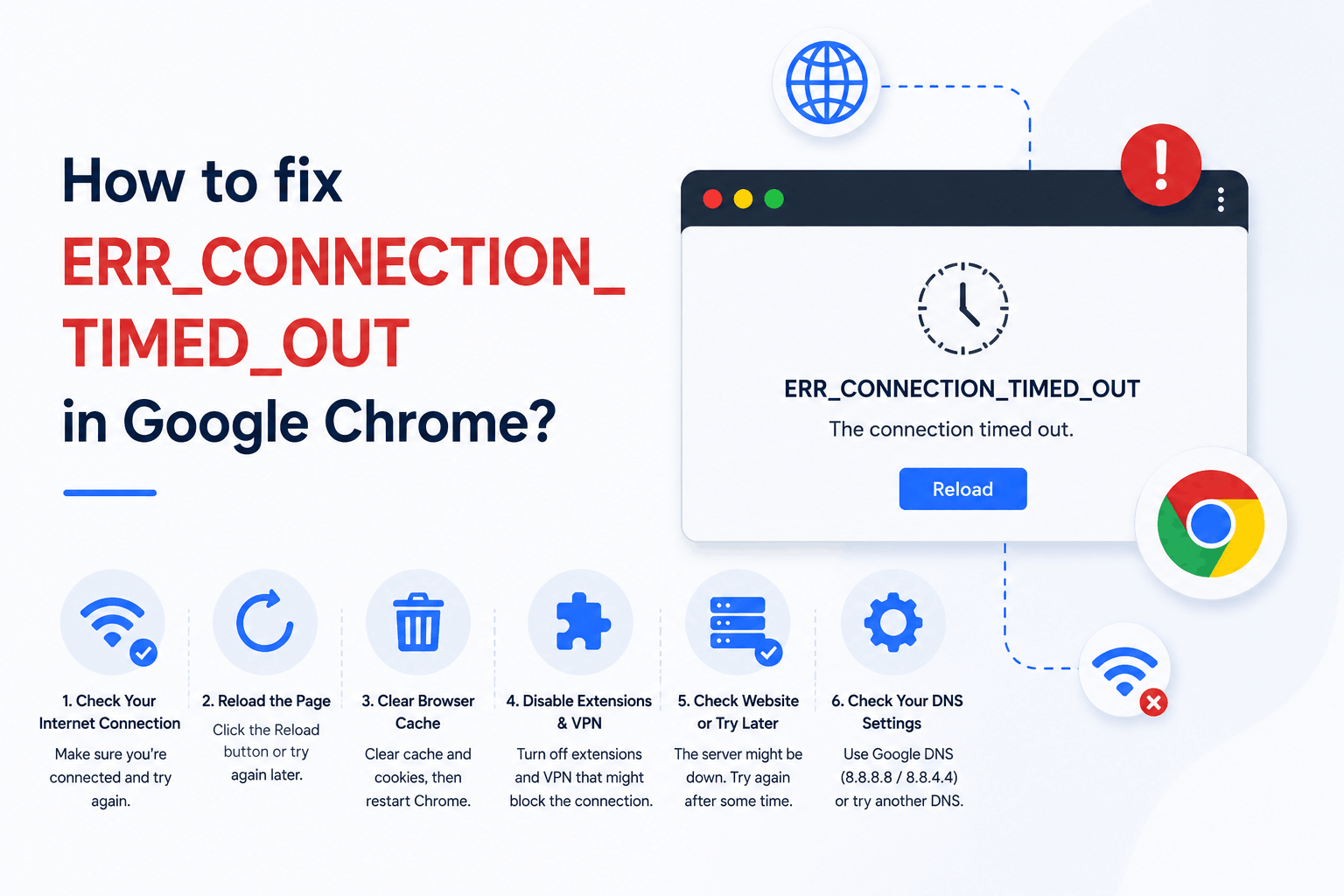
You type a URL, hit Enter, and then nothing happens for about 30 seconds. The spinner keeps turning. Eventually Chrome stops and tells you the site took too long to respond. ERR_CONNECTION_TIMED_OUT.
That waiting period is the key to understanding this error. It is completely different from ERR_CONNECTION_RESET, where the connection is killed instantly, or ERR_NAME_NOT_RESOLVED, where Chrome cannot even find the server’s address. A timeout means Chrome found the server, sent a request, and waited for a response that never came in time. The server either never replied, replied too slowly, or something between you and the server swallowed the packets.
The fix is different depending on where the wait is happening. Waiting for a server that is overloaded needs a different response than waiting because your own firewall is silently dropping packets, which needs a different response than waiting because your ISP is throttling connections to a specific destination. This guide works through each scenario with the test that identifies it and the exact steps to resolve it.
The fastest test before anything else: open the same URL on a mobile phone using cellular data, not your Wi-Fi. If the page loads on mobile, the problem is somewhere between your computer and the internet, not the server. If it also times out on mobile, the server itself is the issue or the site is down.
A Timeout Is Not a Refusal and Not a Crash: The Distinction Matters
Three Chrome errors look similar to users but require completely different fixes. Mixing them up is the most common reason people spend an hour applying fixes that cannot possibly work.
| Error | What Happened | Who Caused It | Fix Direction |
| ERR_CONNECTION_TIMED_OUT | Chrome waited and got no response within the timeout window | Slow server, blocked route, overloaded network | Check server status, clear route blockages |
| ERR_CONNECTION_RESET | Connection was established then actively killed by a RST packet | Server, firewall, or antivirus sent RST | Fix TCP stack, antivirus HTTPS scanning |
| ERR_CONNECTION_REFUSED | Server answered and explicitly said no (port closed) | Server has nothing listening on that port | Server configuration, wrong URL, wrong port |
| ERR_NAME_NOT_RESOLVED | DNS lookup failed, Chrome never found the IP | DNS failure: no record, wrong server, expired domain | DNS flush, change DNS server, domain DNS check |
Timeouts produce a consistent 30-second wait before the error appears, because that is Chrome’s default TCP connection timeout. If you see the error faster than 30 seconds, it is likely a reset or refusal presenting itself before the timeout window closes. If you wait a full half-minute every time you try the page, it is genuinely a timeout.
The Three Scenarios That Produce ERR_CONNECTION_TIMED_OUT
Before running any fix, identify which of these three scenarios you are in. Each requires a different starting point.
Scenario A: The timeout happens on all sites or many sites
When even google.com or a site you know is always up produces ERR_CONNECTION_TIMED_OUT, the problem is not the destination. Something between your computer and the internet is broken. The candidates are your router, your ISP’s connection, your DNS resolver, your network adapter, a corrupted Windows TCP/IP stack, your VPN, or a local firewall rule that blocks outbound traffic.
Start here: restart your router completely (unplug for 30 seconds, not just a soft reset). Then run the network stack reset commands in Fix 3. If those do not work, test from your phone on the same Wi-Fi to determine whether the issue is the router or your specific computer.
Scenario B: The timeout happens on one specific site
The server is reachable from other networks or devices but not from yours. This points to either your ISP throttling or blocking connections to that specific IP range, your antivirus or firewall blocking that destination, your DNS returning a stale or wrong IP for that domain, or the hosts file on your computer overriding DNS with a wrong address.
The fastest test: connect through a VPN and try the site. If it loads through the VPN, your ISP or a local filter is blocking the route to that destination. If it still times out through the VPN, the problem is in your browser configuration or the site itself is having issues.
Scenario C: The site times out for everyone, not just you
Check a service like downforeveryoneorjustme.com or isitdownrightnow.com. If the site is reported down globally, the server is the problem and there is nothing to fix on your end. You wait for the site operator to resolve it. If the site is reported up but you still see a timeout, return to Scenario B.
Run this command to test whether your computer can reach the server at all, bypassing the browser timeout. In Command Prompt or Terminal: ping yourdomain.com. If ping returns replies with response times, the network route exists and the server is alive, meaning the timeout is likely in the HTTP layer rather than the TCP layer. If ping times out, the network route itself is blocked.
Fix 1: Restart Your Router and Check the Physical Connection
Routers accumulate stale routing tables, expired NAT entries, and DNS cache entries over weeks of continuous operation. These stale entries can cause specific connections to time out while others work fine. A full power cycle, not a soft restart button, clears all of this.
Unplug the power cable from the router and the modem (if they are separate devices). Wait 30 seconds minimum. Plug the modem back in first and wait for its indicator lights to stabilize before plugging in the router. Give the router 60 seconds to fully restart before testing.
While you are at it: if you are on Wi-Fi, connect via an Ethernet cable and test again. Wi-Fi signal interference, distance from the router, and channel congestion can all cause packets to drop silently, producing timeouts. A wired connection isolates whether the issue is wireless-specific.
Fix 2: Check the Hosts File for Overrides
The hosts file is a plain text file on your computer that overrides DNS for specific domain names. If a domain is listed in the hosts file with a wrong IP address, a loopback address (127.0.0.1), or the address of a server that no longer exists, Chrome times out trying to reach that wrong destination. Malware, development tools, VPN software, and manual editing can all produce incorrect hosts file entries.
| # Windows hosts file location:
C:\Windows\System32\drivers\etc\hosts
# Open it with Notepad as Administrator: # Right-click Notepad > Run as administrator > File > Open > navigate to path above
# Mac / Linux hosts file: sudo nano /etc/hosts
# What to look for: any line that mentions the domain timing out # Example of a bad entry that causes timeout: # 192.168.1.100 google.com # This sends google.com requests to your local router, which won’t respond
# Lines beginning with # are comments and are ignored # Remove any line that maps the timing-out domain to a wrong IP # Save the file and flush DNS after editing: ipconfig /flushdns |
Antivirus and parental control software sometimes write entries to the hosts file to block specific sites. If you remove an entry and the connection works, verify you are not bypassing an intentional security or content filter before continuing.
Fix 3: Reset the Network Stack
Windows maintains a TCP/IP stack and a Winsock catalog that handle all network operations. After prolonged use, failed network changes, or software that modifies network settings and does not clean up after itself, these components can accumulate corruption that causes connections to silently stall. The stack accepts the initial connection attempt but then stops processing packets, resulting in a timeout rather than an error.
This reset restores the network stack to factory defaults without affecting any files or browser data. Run these in a Command Prompt opened as administrator, then restart the computer:
| netsh winsock reset
netsh int ip reset ipconfig /flushdns ipconfig /release ipconfig /renew
# Restart the computer after all commands complete. # The reset only takes full effect after a reboot. |
On Mac, the equivalent is flushing DNS and renewing the DHCP lease:
| sudo dscacheutil -flushcache
sudo killall -HUP mDNSResponder # Renew DHCP lease: # System Settings > Network > select active adapter > Details > TCP/IP > Renew DHCP Lease |
Fix 4: Disable Proxy Settings
A proxy server configured in Windows or Chrome routes your browser traffic through an intermediate server. If that proxy server is unavailable, slow, or blocking certain destinations, Chrome waits for it to respond until the timeout window closes. This is a common result of malware that redirects traffic through a proxy, VPN software that leaves proxy settings enabled after uninstallation, and manual proxy configurations applied for a specific network that are now wrong.
To check proxy settings:
- Open Chrome and click the three-dot menu, then Settings
- Click System in the left sidebar
- Click Open your computer’s proxy settings
- On Windows: ensure Use a proxy server is Off under Manual proxy setup
- On Mac: check System Settings, Network, your active connection, Details, Proxies, and ensure all proxy types are unchecked
If a proxy is listed that you did not configure, remove it and scan for malware. Browser-hijacking malware uses proxy settings to intercept traffic, and the proxy server it routes through is often unreliable, producing ERR_CONNECTION_TIMED_OUT.
| # Verify proxy state via Command Prompt:
netsh winhttp show proxy
# Remove any proxy that should not be there: netsh winhttp reset proxy
# Also check via Internet Options for legacy proxy settings: # Press Win+R, type: inetcpl.cpl, Enter # Connections tab > LAN Settings # Uncheck ‘Use a proxy server for your LAN’ |
Fix 5: Flush DNS Cache and Switch to a Faster DNS Resolver
DNS resolution is the first step in loading any website. Chrome contacts a DNS server to translate the domain name into an IP address before it can open a connection. If the DNS cache holds a stale entry pointing to a server that no longer exists, or if the DNS resolver your ISP provides is slow or temporarily down, Chrome waits for a DNS response before the connection attempt even begins. That wait contributes to the total timeout window.
Flush the local DNS cache and also clear Chrome’s internal DNS cache, which is stored separately:
| # Windows: flush OS DNS cache
ipconfig /flushdns
# Chrome’s internal DNS cache (open in Chrome address bar): chrome://net-internals/#dns # Click ‘Clear host cache’
# Also clear Chrome’s socket pool at: chrome://net-internals/#sockets # Click ‘Flush socket pools’ |
After flushing, if DNS resolution itself was slow, switch to a public DNS resolver. In Windows Network Connections properties, set the Preferred DNS to 1.1.1.1 (Cloudflare) or 8.8.8.8 (Google) and the Alternate DNS to 1.0.0.1 or 8.8.4.4 respectively. These resolvers have better global infrastructure and typically respond faster than ISP-provided resolvers.
Fix 6: Disable VPN or Change VPN Server
VPNs add network hops between your computer and every destination. If the VPN server is overloaded, has a routing problem to the destination site, or is geographically far from the site’s hosting location, all those extra round-trips can push the connection time past Chrome’s timeout threshold. This is especially noticeable on sites that require multiple DNS lookups and TCP connections to load, since each one runs through the VPN and each can time out independently.
Disconnect from your VPN entirely and test the failing site directly. If it loads without the VPN, the fix is either switching to a different VPN server location, changing the VPN protocol (WireGuard is typically faster than OpenVPN or IKEv2), or disabling the VPN’s split-tunneling limitations if it is unnecessarily routing traffic it should send directly.
If the site also times out without the VPN, the VPN is not the cause and you can reconnect without concern.
Fix 7: Check Firewall and Antivirus for Blocked Connections
Firewalls block connections by silently dropping packets rather than actively refusing them. From Chrome’s perspective, this looks identical to a slow server: it sends the request, receives no response, and eventually times out. Antivirus software with real-time web protection can produce the same effect when it stalls on a file or connection it cannot classify quickly.
Test whether the firewall is the cause by temporarily disabling Windows Defender Firewall:
| # Disable Windows Defender Firewall temporarily (Command Prompt as Admin):
netsh advfirewall set allprofiles state off
# Test the failing site. If it loads, a firewall rule is blocking it.
# Re-enable immediately after testing: netsh advfirewall set allprofiles state on
# If firewall was the cause, add a specific outbound allow rule instead: netsh advfirewall firewall add rule name=’Chrome Outbound’ dir=out action=allow program=’C:\Program Files\Google\Chrome\Application\chrome.exe’ enable=yes |
For antivirus products with real-time web scanning, temporarily disable only the web scanning component, not the full antivirus. Test the site, then re-enable immediately. If the site loads, add it to the antivirus URL exclusions list rather than leaving web scanning disabled.
Never leave the firewall or antivirus disabled. The test takes seconds. Re-enable protection immediately after confirming whether the software is causing the timeout.
Fix 8: Clear Browser Cache and Disable Extensions
Corrupted cached resources can cause Chrome to loop trying to load a resource that will never return a valid response. This is less common as a cause of timeouts than it is for other browser errors, but it does occur when a partial file download was cached during a previous crash and Chrome keeps attempting to complete it.
Press Ctrl+Shift+Delete in Chrome, set the time range to All time, check Cached images and files and Cookies and other site data, and click Clear data. Restart Chrome after clearing.
Extensions that modify network behavior can also introduce timeout conditions. A VPN extension in a broken state, a proxy extension pointing to a dead server, or a network monitoring extension that intercepts connections and fails to forward them all produce timeouts. Open an incognito window and test the failing URL. Incognito runs without extensions by default. If the page loads in incognito, disable all extensions via chrome://extensions and reactivate them one at a time.
Fix 9: Increase the Chrome Connection Timeout via Flags (Temporary Workaround)
Chrome’s default TCP connection timeout is approximately 30 seconds. For sites hosted on servers with slow initial response times, legitimately distant geographic locations, or certain shared hosting configurations where the server’s response can legitimately take longer, this 30-second window is sometimes too short. Chrome times out before the server responds.
This is a workaround rather than a root-cause fix, but it can be useful for confirming whether the issue is a close race against the timeout window. To test whether a longer timeout resolves the error, you can adjust Chrome’s connection timeout via a command-line flag:
| # Windows: right-click the Chrome shortcut > Properties
# In the Target field, add the flag after chrome.exe: # Example Target line: “C:\Program Files\Google\Chrome\Application\chrome.exe” –proxy-server=’direct://’ –proxy-bypass-list=’*’
# The actual timeout flag for testing: # Add to Target: –socket-timeout=60000 # (60000 milliseconds = 60 seconds instead of default ~30 seconds)
# Note: this flag is undocumented and not guaranteed to persist across Chrome updates. # Use only for diagnosis. If it resolves the timeout, the root cause is server response speed. |
If increasing the timeout resolves the error, the actual problem is server response latency, not your network. The permanent fix is on the server side: caching improvements, server resource upgrades, or moving to faster hosting. Contact the site operator or your hosting provider with specific slow-response evidence.
For Site Owners: Server-Side Causes of ERR_CONNECTION_TIMED_OUT
When visitors report ERR_CONNECTION_TIMED_OUT on your site and it is confirmed as a server-side issue rather than a visitor-side network problem, work through these causes in order.
PHP max_execution_time and WordPress timeouts
On WordPress and PHP sites, the most common server-side cause of timeout errors for specific pages is a PHP script that takes too long to execute. Page builders rendering complex pages, WooCommerce checkout processes hitting slow payment gateway APIs, large media imports, and database-heavy queries can all exceed the PHP execution time limit. When the PHP script times out before it finishes, Apache or Nginx closes the connection and Chrome receives ERR_CONNECTION_TIMED_OUT.
| # In wp-config.php, set a higher script timeout for WordPress:
set_time_limit(120); // Or add above the require_once line:
# In php.ini: max_execution_time = 120 max_input_time = 120
# In .htaccess (Apache only): php_value max_execution_time 120
# In nginx.conf for FastCGI PHP: fastcgi_read_timeout 120s; |
Server overload and connection queue saturation
When the server is under heavy load, new connection requests queue up waiting for a free worker process. If the queue is full and new requests arrive, the server may stop acknowledging connections, and Chrome times out waiting for the TCP handshake to complete. This is different from a 503 response, where the server has enough capacity to respond with an error. In a severe overload, the kernel’s connection queue fills before the web server process even sees the request.
| # Check server load on Linux:
top uptime # Load average should be below the number of CPU cores
# Check how many connections are queued: ss -s # High SYN-RECV count indicates connection queue saturation
# In /etc/sysctl.conf, increase the connection backlog: net.ipv4.tcp_max_syn_backlog = 2048 net.core.somaxconn = 1024 # Apply changes: sudo sysctl -p |
Hosting firewall or IP restriction
Shared and managed hosting providers run firewall software that can erroneously block IP addresses from countries or IP ranges they classify as high-risk. When a visitor’s IP address falls into a blocked range, their connection attempts are silently dropped. The visitor sees ERR_CONNECTION_TIMED_OUT while visitors from other IP ranges see the site normally. This is particularly common for visitors connecting through data center IP ranges, certain VPN providers, and some international IP ranges.
Test this by having the affected visitor connect through a VPN or different network. If they can then reach the site, their original IP was being blocked by a firewall rule. Contact the hosting provider with the affected visitor’s IP address and request it be whitelisted or the blocking rule be reviewed.
Nginx and Apache timeout configuration for long-running requests
Web server timeout settings control how long the server waits for PHP, Node.js, or other backend processes to return a response. If these are set too low for the operations your site performs, the web server closes the connection before the backend finishes, and the visitor sees ERR_CONNECTION_TIMED_OUT.
| # Nginx: increase timeouts for slow backends
# In /etc/nginx/nginx.conf or site config: proxy_connect_timeout 60s; proxy_read_timeout 120s; proxy_send_timeout 60s; fastcgi_read_timeout 120s;
# Apache: increase timeout in httpd.conf or apache2.conf: Timeout 120 ProxyTimeout 120
# After changes: nginx -t && systemctl reload nginx # or: apachectl configtest && systemctl restart apache2 |
Which Fix to Try First: A Scenario Matching Table
| What you observe | Root cause territory | Start with |
| Times out on all sites, all browsers | Router, ISP, or local TCP stack | Restart router. Run netsh winsock reset. |
| Times out on all sites, Chrome only | Chrome settings, extensions, or flags | Clear cache, disable extensions, reset chrome://flags |
| Times out on one site, loads via VPN | ISP blocking or route issue | Test via different DNS server, report to ISP |
| Times out on one site, also via VPN | Server down or site blocking your IP | Check site status tools, contact site owner |
| Times out on all sites, fixed by disabling firewall | Firewall outbound block rule | Add Chrome exception to firewall, keep firewall on |
| Times out after 30 seconds on slow pages | Server execution time exceeded | Increase PHP max_execution_time (site owners) |
| Times out on Wi-Fi but not on wired connection | Wireless interference or congestion | Use Ethernet, change Wi-Fi channel, move closer to router |
| Times out on specific pages with large images or downloads | MTU mismatch, packet fragmentation | Adjust MTU size (see ERR_CONNECTION_RESET guide) |
| Times out after installing new software | VPN or proxy left proxy settings enabled | Check proxy settings, remove unexpected proxy |
| Times out periodically, then works for a while | Server intermittent overload or shared host throttle | Upgrade hosting plan, enable caching |
Frequently Asked Questions
What does ERR_CONNECTION_TIMED_OUT mean?
ERR_CONNECTION_TIMED_OUT means Chrome sent a request and waited for a response, but the server did not reply within Chrome’s timeout window (approximately 30 seconds for TCP connections). The connection was not refused or reset. It simply never completed. The cause can be on your computer (slow DNS, blocked route, corrupted network stack), on your network (router issue, ISP throttling), or on the server (overloaded, misconfigured, behind a firewall that drops your IP).
How do I know if it is my problem or the website’s problem?
Test the site on mobile data on a different device, not on your home Wi-Fi. If it loads there, the problem is on your side. If it also fails there, the site has an issue. Also use downforeveryoneorjustme.com to check whether the site is down globally. If the site is reported as up globally but you cannot reach it, your ISP or network is the issue. If it is reported as down, the server is the issue and you wait.
Will clearing cache fix ERR_CONNECTION_TIMED_OUT?
Rarely by itself, but it is worth doing because it costs nothing and eliminates a possible contributor. A corrupted cached resource can cause Chrome to loop trying to load it, contributing to timeouts. However, this is not the primary cause of most ERR_CONNECTION_TIMED_OUT errors. The most common causes are network-side: the router, the TCP/IP stack, a proxy, a firewall, or the server itself. Clear the cache as one step in the troubleshooting process, not as the primary fix.
Why does ERR_CONNECTION_TIMED_OUT happen on only one site?
Three main causes: your ISP is throttling or blocking connections to that specific IP range; your antivirus or firewall has a rule targeting that domain or IP; or the site’s server or CDN is blocking your IP address. To distinguish: try the site through a VPN. If it loads through a VPN, your ISP or a local filter is blocking the route to that server. If it still times out through a VPN, the server is likely blocking your IP or is genuinely overloaded for certain request types.
Can a slow internet connection cause ERR_CONNECTION_TIMED_OUT?
A slow connection can contribute, but pure bandwidth is rarely the cause. ERR_CONNECTION_TIMED_OUT fires at the TCP connection layer, before large amounts of data are transferred. Establishing a TCP connection requires only tiny SYN and SYN-ACK packets. Even very slow connections handle these easily. A more likely connection-related cause is high latency (not low bandwidth) or packet loss, which can cause the TCP handshake to fail or stall. Run a ping test to the failing site to measure latency and packet loss.
What is the difference between ERR_CONNECTION_TIMED_OUT and ERR_TIMED_OUT?
ERR_CONNECTION_TIMED_OUT fires during the TCP connection phase, before HTTP data transfer begins. It means Chrome could not establish the connection to the server within the timeout window. ERR_TIMED_OUT fires after a connection was established, during the HTTP data transfer phase. It means the connection opened but the server stopped sending data mid-transfer. ERR_CONNECTION_TIMED_OUT typically points to network routing issues or an unreachable server. ERR_TIMED_OUT typically points to a slow or overloaded server that starts responding but cannot finish.
Does ERR_CONNECTION_TIMED_OUT mean the website is blocked?
Not necessarily, but blocking is one possible cause. Firewalls and ISPs that block connections do so by silently dropping packets rather than actively refusing them, which produces a timeout rather than a connection refused error. However, server overload, DNS failures, network routing problems, and local TCP/IP stack corruption also produce identical timeout behavior. Test through a VPN to determine whether the route is blocked. If it loads through a VPN, blocking is the likely cause. If it still times out, the cause is elsewhere.
The site only times out on long or complex pages. Why?
This pattern points to a server-side execution time limit rather than a network problem. Simple pages load quickly; complex pages trigger PHP scripts, database queries, or API calls that take time. If those operations exceed the PHP max_execution_time setting or the web server’s timeout, the connection is closed before the page finishes generating. The fix is on the server: increase PHP max_execution_time in php.ini or wp-config.php, increase Nginx fastcgi_read_timeout, and investigate and optimize the slow operations causing the long execution times.

