
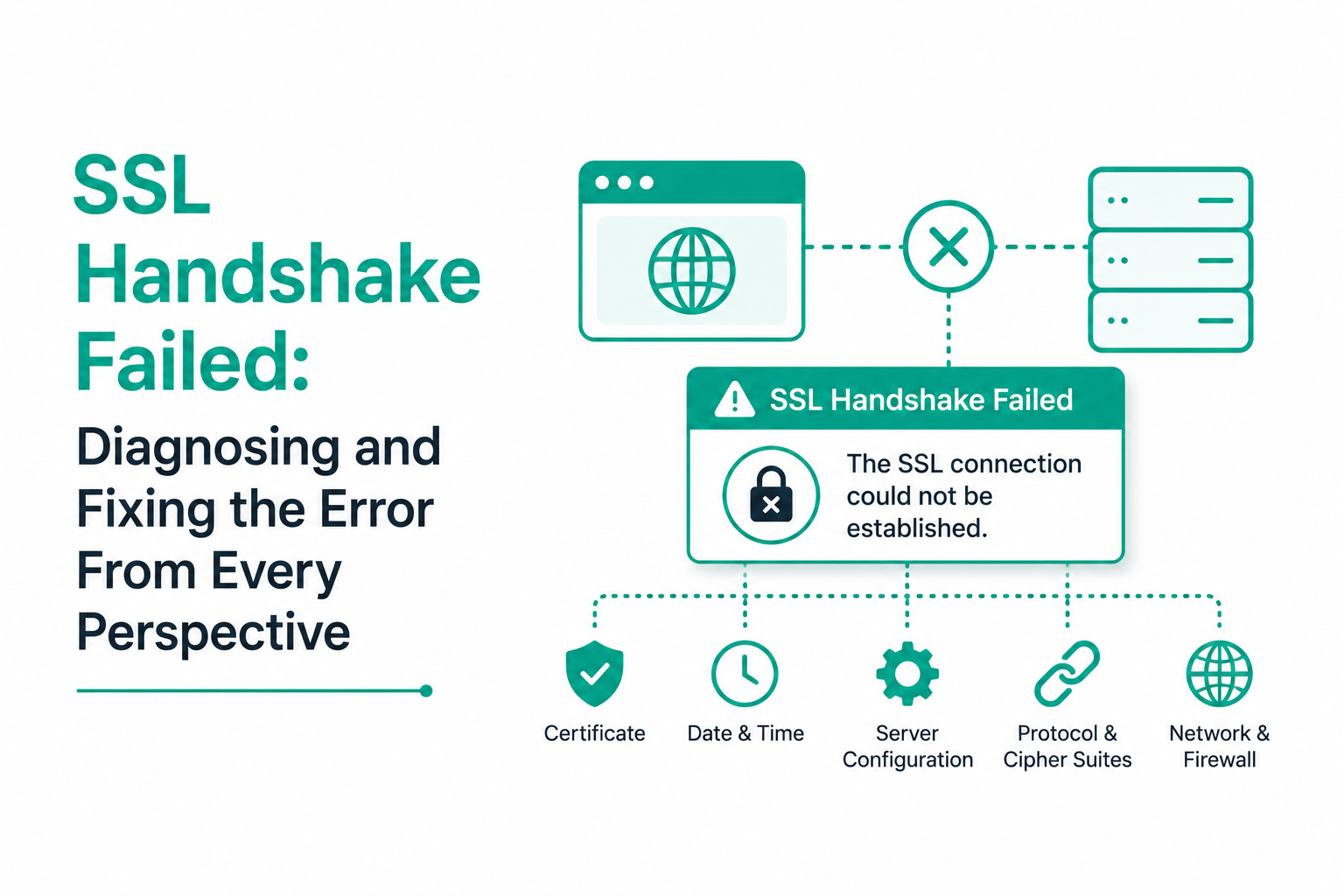
SSL handshake failed is not a single error. It is a category of failure that occurs when a TLS handshake between a client and server cannot complete, and the specific cause depends on which phase of the handshake broke down and which party you ask. A visitor sees a browser error code. A site owner sees a different message in server logs. A developer calling an API sees a language-specific exception. A sysadmin debugging service-to-service communication sees yet another error format.
The fix authority also differs by perspective. A visitor can fix some handshake failures (wrong system clock, corrupted SSL cache, antivirus interception) but cannot fix server-side misconfigurations. A server owner must fix cipher suites, TLS protocol versions, certificate chain completeness, and SNI configuration. A developer must address how their application’s TLS library is configured. Applying the wrong category of fix wastes time.
This guide is structured by perspective. Understand the handshake mechanics first, then go directly to the section that matches your role in the failing connection.
The TLS Handshake: What Can Break and When
The TLS handshake establishes the encrypted session between client and server. Understanding the sequence identifies which phase produced the failure, which is the fastest path to the correct fix.
| Handshake Phase | What Happens | Failure Signal | Likely Cause |
| ClientHello | Client announces supported TLS versions, cipher suites, extensions (including SNI) | Server returns no response or alert 40 (handshake_failure) | Server cannot process ClientHello: possibly requires client certificates, SNI misconfiguration |
| ServerHello + Certificate | Server selects TLS version and cipher suite; sends its certificate chain | No shared cipher suites: ERR_SSL_VERSION_OR_CIPHER_MISMATCH | Server only offers deprecated cipher suites or TLS 1.0/1.1 that client has disabled |
| Certificate validation | Client verifies server certificate chain, expiry, SANs, and revocation | Certificate error in browser; handshake_failure alert | Expired cert, missing intermediate, hostname mismatch, untrusted CA |
| Key exchange | Client and server derive session keys using selected key exchange algorithm | Connection reset mid-handshake | Incompatible key exchange algorithms; TLS version inconsistency |
| Finished | Both sides send Finished messages to confirm handshake; session begins | SSL_ERROR_RX_RECORD_TOO_LONG or similar | Record layer issues; HTTP served on 443; MTU/fragmentation problems with large certificates |
The fastest diagnostic tool for any TLS handshake failure is openssl s_client. Run it from a machine that can reach the target server. The output shows exactly what the server presents and where the handshake fails. The most useful invocations are covered in the server owner section below.
If You Are a Visitor: What You Can Fix
As a visitor, you can address causes that originate on your device. You cannot fix server misconfiguration. If the same error appears on multiple different sites, the problem is likely on your device. If the error appears only on one specific site, the problem is likely on that server.
1. Check and correct your system clock
Certificate validation checks the certificate’s validity period against the current time. A system clock that is significantly wrong (hours or days off) causes all TLS certificate validation to fail, producing handshake errors across all HTTPS sites simultaneously. This is the highest-yield single check. On Windows: right-click the taskbar clock, select Adjust date and time, enable Set time automatically. On macOS: System Settings, General, Date and Time, enable Set automatically.
2. Try a different browser and test in incognito
If the error appears in Chrome but not Firefox (or vice versa), it is browser-specific: profile corruption, flags, or extension interference. Open the same URL in an incognito window with all extensions disabled. If it loads in incognito, an extension in your normal profile is causing the failure. Open chrome://extensions and disable all extensions, then re-enable them one at a time to identify the culprit.
3. Clear the browser SSL state and socket pool
Chrome maintains a cached SSL state and connection pool that can contain stale or corrupted entries. Clear the SSL state on Windows (Win+R, type inetcpl.cpl, Content tab, Clear SSL state) and flush Chrome’s socket pool (navigate to chrome://net-internals/#sockets, click Flush socket pools). These remove cached TLS session data rather than regular browsing cache.
4. Check for antivirus HTTPS scanning
Antivirus products that intercept HTTPS connections (Kaspersky, Avast, ESET, Bitdefender, and others) perform HTTPS inspection by sitting between your browser and the server. When the inspection process fails mid-handshake, it produces SSL handshake failed. Temporarily disable the antivirus product’s HTTPS scanning feature (labeled Web Shield, Encrypted connections scanning, HTTPS filtering, or similar) and retry the connection. If the error clears, the antivirus interception is the cause. Re-enable it and add the affected site to the antivirus URL exclusions list.
5. Check if you are on a corporate or filtered network
Corporate networks often deploy SSL inspection proxies that intercept all HTTPS connections. If the corporate proxy’s CA certificate is not installed on your device’s trust store, or if the proxy has a configuration problem, TLS handshakes through it will fail. Try the same URL on a different network (mobile hotspot). If it works on cellular but not on the corporate network, the issue is with the proxy configuration. Contact IT.
If You Own the Server: Diagnosing and Fixing Configuration Issues
Server-side handshake failures are almost always caused by one of four things: deprecated TLS protocol versions still enabled or required, weak or incompatible cipher suites, certificate chain problems, or SNI misconfiguration. The openssl s_client command is the fastest way to identify which.
Diagnostic: openssl s_client
| # Basic TLS test: shows certificate, negotiated version, and cipher
$ openssl s_client -connect yourdomain.com:443 -servername yourdomain.com
# Test specific TLS version support: $ openssl s_client -connect yourdomain.com:443 -tls1_2 $ openssl s_client -connect yourdomain.com:443 -tls1_3
# Check certificate chain completeness (look for ‘depth’ count): $ openssl s_client -connect yourdomain.com:443 -showcerts 2>/dev/null | grep -c ‘BEGIN CERTIFICATE’ # Should return 2 or 3. A return of 1 means the intermediate is missing.
# Test from a specific source to simulate a restricted client: $ openssl s_client -connect yourdomain.com:443 -cipher ‘ECDHE-RSA-AES256-GCM-SHA384’ # If this fails with ‘no ciphers available’, the server does not support this cipher.
# Check what the server negotiates without SNI (for legacy client testing): $ openssl s_client -connect yourdomain.com:443 # no -servername flag |
Fix 1: Enable TLS 1.2 and TLS 1.3; disable deprecated versions
Chrome and Firefox disabled TLS 1.0 and TLS 1.1 in 2020. Any server that only supports these versions is unreachable from any current browser. Add TLS 1.2 and TLS 1.3 to the server configuration and explicitly disable SSLv2, SSLv3, TLS 1.0, and TLS 1.1.
| # Nginx: add or update ssl_protocols
ssl_protocols TLSv1.2 TLSv1.3;
# Apache: update SSLProtocol SSLProtocol all -SSLv3 -TLSv1 -TLSv1.1
# After changes, reload the server and verify with SSL Labs: # https://www.ssllabs.com/ssltest/ |
Fix 2: Update cipher suites
Servers configured with old cipher suites (RC4, DES, 3DES, export ciphers, non-AEAD suites) will fail handshakes with modern clients that have removed support for these ciphers. Replace the cipher configuration with a modern list:
| # Nginx: modern cipher suite list
ssl_ciphers ECDHE-ECDSA-AES256-GCM-SHA384:ECDHE-RSA-AES256-GCM-SHA384:ECDHE-ECDSA-AES128-GCM-SHA256:ECDHE-RSA-AES128-GCM-SHA256:ECDHE-ECDSA-CHACHA20-POLY1305:ECDHE-RSA-CHACHA20-POLY1305; ssl_prefer_server_ciphers off;
# Apache: equivalent directive SSLCipherSuite ECDHE+AESGCM:ECDHE+CHACHA20:!aNULL:!eNULL:!EXPORT:!RC4:!3DES
# Note: ssl_prefer_server_ciphers off allows clients to use # their preferred order (typically better for TLS 1.3). |
Fix 3: Complete the certificate chain
If openssl s_client returns only 1 certificate (leaf only, no intermediate), the server is not sending the intermediate CA certificate. Every client that does strict chain validation fails. Download the intermediate certificate from your CA (it is always published on their repository page) and concatenate it into the certificate bundle served by the web server. The order must be leaf certificate first, then intermediate, then optionally root.
Fix 4: SNI configuration
SNI (Server Name Indication) allows a server to host multiple SSL certificates on the same IP address by reading the requested hostname from the TLS ClientHello before presenting the certificate. A server with SNI misconfiguration presents the wrong certificate for the requested hostname, causing chain validation failure.
To diagnose: run openssl s_client with and without the -servername flag. If the certificate returned without -servername is different from the one returned with it, the server is presenting a default certificate that may not cover the requested domain. Verify that the Nginx server_name or Apache ServerName and ServerAlias match the SANs in the certificate for each virtual host.
Legacy clients that do not send SNI (old Android versions, old Java applications, embedded devices) always receive the server’s default certificate rather than the certificate for the requested hostname. If the server hosts multiple domains on one IP and the default certificate does not cover all domains, these clients will see a hostname mismatch error. The fix is to configure the most permissive certificate (a wildcard or multi-SAN certificate) as the default.
Cloudflare-Specific Handshake Failures: Error 525 vs Error 526
When a site uses Cloudflare, TLS handshake failures appear as Cloudflare error pages rather than browser error codes. Two distinct errors are commonly conflated:
| Cloudflare Error | What Failed | Cause | Fix |
| Error 525 | Cloudflare cannot complete TLS handshake with origin server | Origin server using TLS 1.0/1.1 only, incompatible cipher suites, or origin connection is refused | Enable TLS 1.2+ on origin server; update cipher suites; ensure port 443 is accepting connections |
| Error 526 | Cloudflare completed TLS handshake but origin certificate is invalid | Self-signed cert on origin with Full (Strict) mode, expired cert, certificate not covering the domain | Install valid certificate on origin; or switch Cloudflare SSL mode to Full (not Strict) if using self-signed |
Error 525 is a genuine TLS handshake failure: the cipher/protocol negotiation between Cloudflare and the origin failed. Error 526 is a certificate validation failure after a successful handshake. They require different fixes. Checking the Cloudflare SSL mode and the origin server’s TLS configuration are the first steps for both.
If You Are a Developer: Application-Level TLS Errors
Application code making HTTPS requests encounters TLS handshake failures as language-specific exceptions rather than browser error codes. The diagnostic information is in the exception message and the library’s error codes.
Python: ssl.SSLError and requests exceptions
Python’s requests library wraps SSL errors as requests.exceptions.SSLError. The underlying ssl.SSLError message contains the OpenSSL error code. Common patterns: CERTIFICATE_VERIFY_FAILED (certificate chain validation failure, see the CERTIFICATE_VERIFY_FAILED article in this series), WRONG_VERSION_NUMBER (server is sending HTTP on port 443 instead of TLS), UNSUPPORTED_PROTOCOL (version mismatch). For corporate environments, the most common cause is certifi’s bundle lacking the corporate CA certificate. Append the corporate CA to certifi’s bundle or set the REQUESTS_CA_BUNDLE environment variable.
Java: SSLHandshakeException
Java’s TLS stack is notorious for handshake failures because Java’s default cipher suites and protocol support are tied to the JDK version. Older JDK versions disable TLS 1.3 by default, have limited cipher suite support, and require explicit configuration to enable modern algorithms. Specific failure patterns:
- No appropriate protocol: The server requires TLS 1.3 but the Java version does not support it, or the server only supports TLS 1.0/1.1 which newer JDKs have disabled. Check JVM TLS support with java -Djavax.net.debug=ssl:handshake and look for the negotiated version.
- No common cipher suites: The server uses ECDHE cipher suites but the JDK’s security policy file restricts them. Updating jdk.tls.disabledAlgorithms in java.security resolves this.
- PKIX path building failed: The server’s certificate chain chains to a CA not in the JVM’s cacerts trust store. Import the CA certificate using keytool or use a custom SSLContext with a trust store containing the required CA.
Node.js: ECONNRESET, EPROTO, UNABLE_TO_VERIFY_LEAF_SIGNATURE
Node.js TLS errors surface in the error.code property. EPROTO is a generic protocol error that often means the server sent an unexpected record type, indicating HTTP on port 443 or a protocol version incompatibility. UNABLE_TO_VERIFY_LEAF_SIGNATURE means the certificate chain cannot be traced to a trusted CA, usually because NODE_EXTRA_CA_CERTS is not set for corporate CA environments or because the server is missing an intermediate. SELF_SIGNED_CERT_IN_CHAIN is explicit: a self-signed certificate appears somewhere in the chain.
| // For corporate CA environments: add CA to trust store at runtime
const https = require(‘https’); const fs = require(‘fs’);
const agent = new https.Agent({ ca: fs.readFileSync(‘/path/to/corporate-ca.crt’), });
// Or via environment variable before launching Node: // NODE_EXTRA_CA_CERTS=/path/to/corporate-ca.crt node app.js
// Never use rejectUnauthorized: false in production. // It disables all certificate validation for every request. |
Disabling certificate validation in application code (verify=False in Python, rejectUnauthorized: false in Node.js, hostnameVerifier that returns true in Java) is the fix that appears in countless Stack Overflow answers and should never be used in production code. It removes all TLS security for every connection the application makes, including connections to third-party services and internal APIs. The correct fix is adding the required CA certificate to the trust store.
Service-to-Service and API Handshake Failures
TLS handshake failures between services (microservices, CI/CD pipelines, monitoring agents, backend integrations) often go undiagnosed for longer than browser-facing failures because there is no visible error page. The failure appears as a connection timeout, a generic network error, or an empty response.
Common causes in service-to-service contexts: the service’s certificate expired and automated renewal failed; a service was migrated to a new host with a different certificate; an internal CA certificate was rotated and the dependent service was not updated with the new CA; or a network change altered the path and a new SSL inspection proxy is intercepting connections.
For diagnosis in service contexts, curl with verbose output provides the clearest picture of what is happening at the TLS layer:
| # Verbose output shows the full TLS handshake and where it fails:
$ curl -v https://target-service:443/endpoint
# If the service uses a private or internal CA, provide the CA certificate: $ curl –cacert /path/to/internal-ca.crt https://target-service:443/endpoint
# Test which TLS versions the target accepts: $ curl –tlsv1.2 –tls-max 1.2 https://target-service:443/endpoint $ curl –tlsv1.3 https://target-service:443/endpoint
# For mTLS (where your service must present a client certificate): $ curl –cert /path/to/client.crt –key /path/to/client.key https://target-service:443/endpoint |
Frequently Asked Questions
What causes the SSL handshake failed error?
SSL handshake failed occurs when a TLS negotiation between client and server cannot complete. The specific cause depends on which phase of the handshake breaks down. Common causes include: no shared TLS version (server only supports TLS 1.0/1.1 which modern clients have disabled), no shared cipher suites (server offers only deprecated ciphers), certificate validation failure (expired certificate, missing intermediate, hostname mismatch, untrusted CA), SNI misconfiguration (server presents wrong certificate for the requested hostname), or client-side issues (wrong system clock, corrupted SSL cache, antivirus HTTPS interception). The openssl s_client diagnostic command identifies the cause more precisely than any fix attempt.
How do I know if the handshake failure is on the client or server side?
Test the same URL from multiple devices and networks. If the error appears everywhere from every client, the problem is on the server. If it appears only on specific clients, networks, or browsers, the problem is client-side. Additionally, run the SSL Labs test (ssllabs.com/ssltest) for the domain: SSL Labs tests from its own infrastructure and provides an independent view of the server’s TLS configuration. If SSL Labs reports problems (deprecated protocols, weak ciphers, certificate issues), the server needs fixing. If SSL Labs gives the server a passing grade but specific clients still fail, the issue is on those clients.
Why does SSL handshake failed happen after installing a new certificate?
The most common post-installation cause is a missing intermediate certificate. The server was reconfigured to serve only the new leaf certificate without the intermediate CA certificate that connects it to a trusted root. Run openssl s_client -connect yourdomain.com:443 -showcerts and count the certificates returned. If only one appears, the intermediate is missing. Download it from your CA and concatenate it into the certificate bundle. Other post-installation causes include the web server not being reloaded after the certificate was installed (still serving the old certificate), or the ssl_certificate directive pointing to the wrong file.
What is ERR_SSL_VERSION_OR_CIPHER_MISMATCH?
It means Chrome and the server have no TLS version or cipher suite in common. The most common cause is a server configured to support only TLS 1.0 and TLS 1.1, which Chrome disabled in version 84 (August 2020). The server needs TLS 1.2 and TLS 1.3 enabled. A secondary cause is a cipher suite list on the server that contains only deprecated ciphers (RC4, DES, export-grade ciphers) that Chrome no longer supports. Update ssl_protocols and ssl_ciphers in the server configuration and run the SSL Labs test to verify the result.
How do I fix SSL handshake failed in Java applications?
Java TLS failures usually stem from three sources. Protocol mismatch: older JDK versions disable TLS 1.3 or older servers require TLS 1.0/1.1 that newer JDKs have disabled. Check java.security for jdk.tls.disabledAlgorithms and adjust accordingly. Trust store: the server’s CA is not in the JVM’s cacerts trust store. Import the CA using keytool -importcert. Cipher suites: the JDK’s security policy restricts cipher suites the server requires. Run with -Djavax.net.debug=ssl:handshake to see the full negotiation attempt and identify which specific failure is occurring before attempting any fix.

