

You type in a web address, hit Enter, and Chrome stares back at you with ERR_NAME_NOT_RESOLVED. The website cannot be found. But here is what Chrome does not tell you: this error means something completely different depending on whether you are the person trying to visit the site or the person who owns it.
For a visitor, the most likely cause is a stale DNS record sitting in your browser, your operating system, or your ISP’s resolver. For a site owner, the most likely cause is a misconfigured DNS record, a domain that just expired, or DNSSEC left enabled during a server migration. The fix for each scenario looks nothing like the other.
This guide separates those two scenarios clearly and gives you the exact steps for each. It also covers Chrome-specific DNS caching behavior that most guides miss, the full list of related DNS error codes, DNSSEC pitfalls after domain migrations, and the connection between DNS failures and SSL errors that often appear together.
| WHAT ERR_NAME_NOT_RESOLVED MEANS | ERR_NAME_NOT_RESOLVED fires when Chrome cannot translate a domain name into an IP address. DNS (Domain Name System) is the lookup service that performs this translation. The error means the translation failed somewhere along the chain: in Chrome’s own cache, in your operating system’s cache, in your ISP’s DNS resolver, or in the domain’s authoritative nameservers. Unlike ERR_CONNECTION_REFUSED (server found but refusing connection), ERR_NAME_NOT_RESOLVED means no IP address was returned at all. The server may be running perfectly while only the DNS layer is broken. |
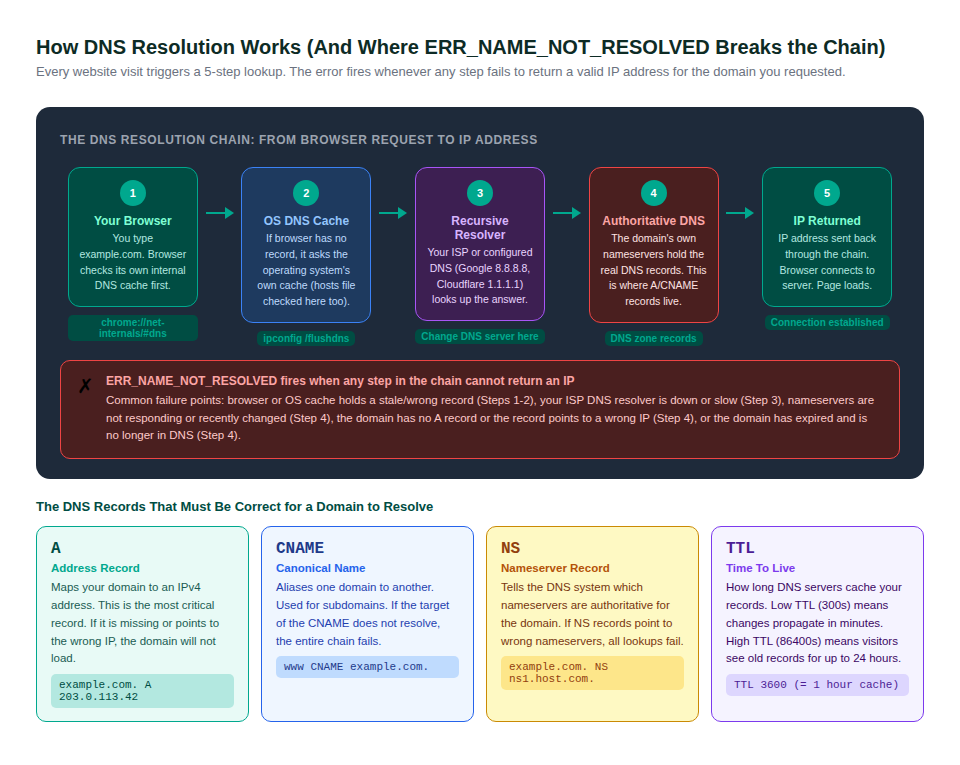
How DNS Resolution Works (And Where the Chain Breaks)
Every website visit triggers a lookup through a multi-stage DNS resolution chain. The error fires when any stage in that chain fails to return a valid IP address. Understanding the chain is the fastest way to diagnose which stage your specific error comes from.
The Cache Layers That Most People Do Not Know Exist
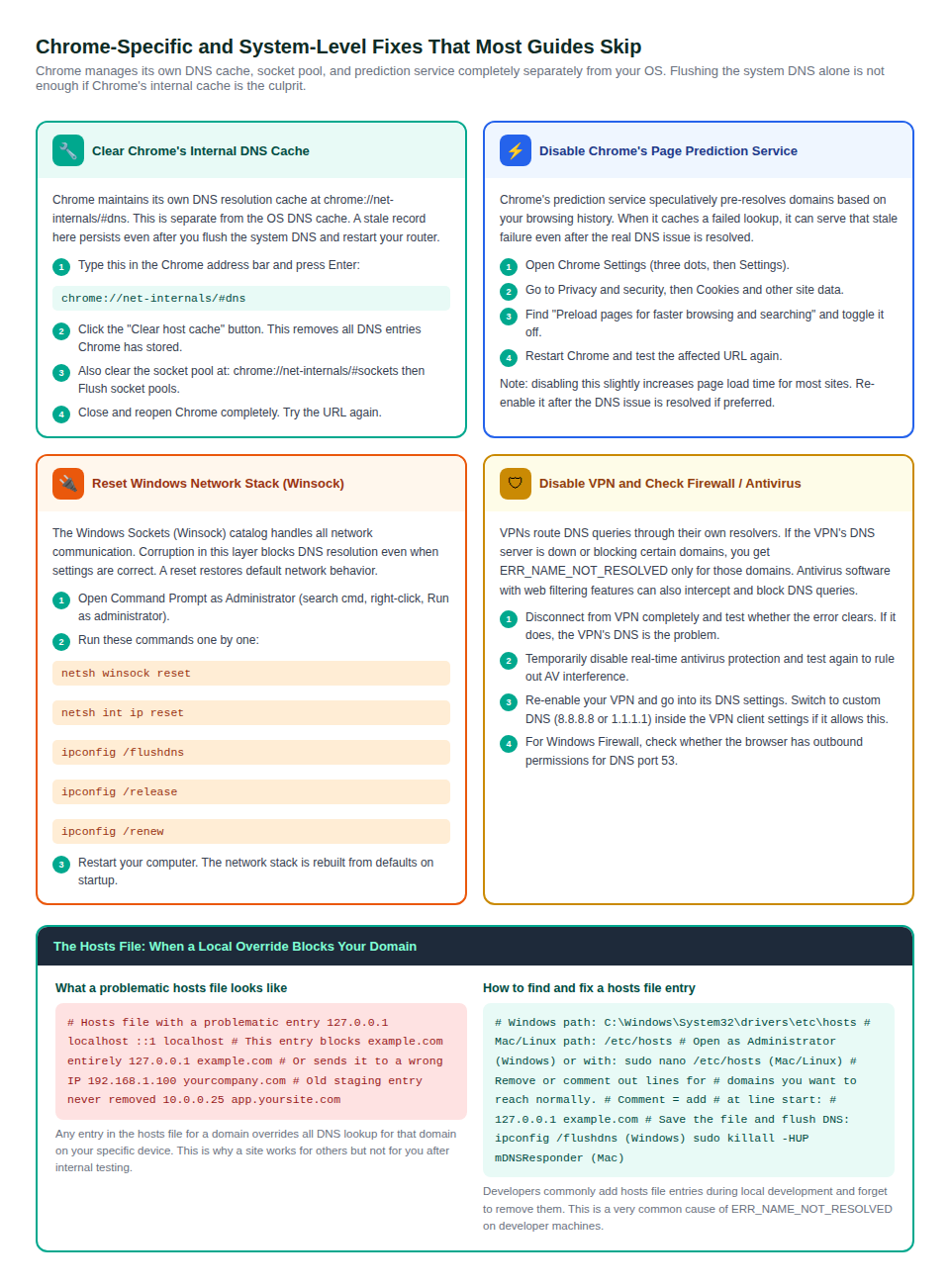
Chrome does not send a fresh DNS query for every page load. It maintains its own internal DNS cache at chrome://net-internals/#dns that is separate from the operating system DNS cache. A stale or wrong record in Chrome’s cache can persist even after you flush the OS-level DNS, restart your router, and switch DNS servers. This is why clearing Chrome’s specific cache is a separate step that many fixes omit.
The same domain can resolve correctly in Firefox (which uses the OS-level DNS cache) while Chrome continues to return ERR_NAME_NOT_RESOLVED from its own internal cache. If your issue appears in Chrome but not other browsers, Chrome’s internal DNS cache is the first thing to clear.
The TTL Factor: Why Fixes Take Minutes or Hours to Work
Every DNS record has a TTL (Time To Live) value that tells resolvers how long to cache the result. A TTL of 3600 means the cached result is valid for one hour. A TTL of 86400 means 24 hours. When a DNS record is wrong or missing, fixing it on the authoritative DNS server does not immediately fix the error for users whose resolvers have cached the old (or empty) result. They will see ERR_NAME_NOT_RESOLVED until their cached TTL expires.
This is why site owners who quickly fix a DNS misconfiguration may still receive visitor complaints for hours afterward. The fix is real, but propagation takes time depending on the TTL that was in effect before the change.
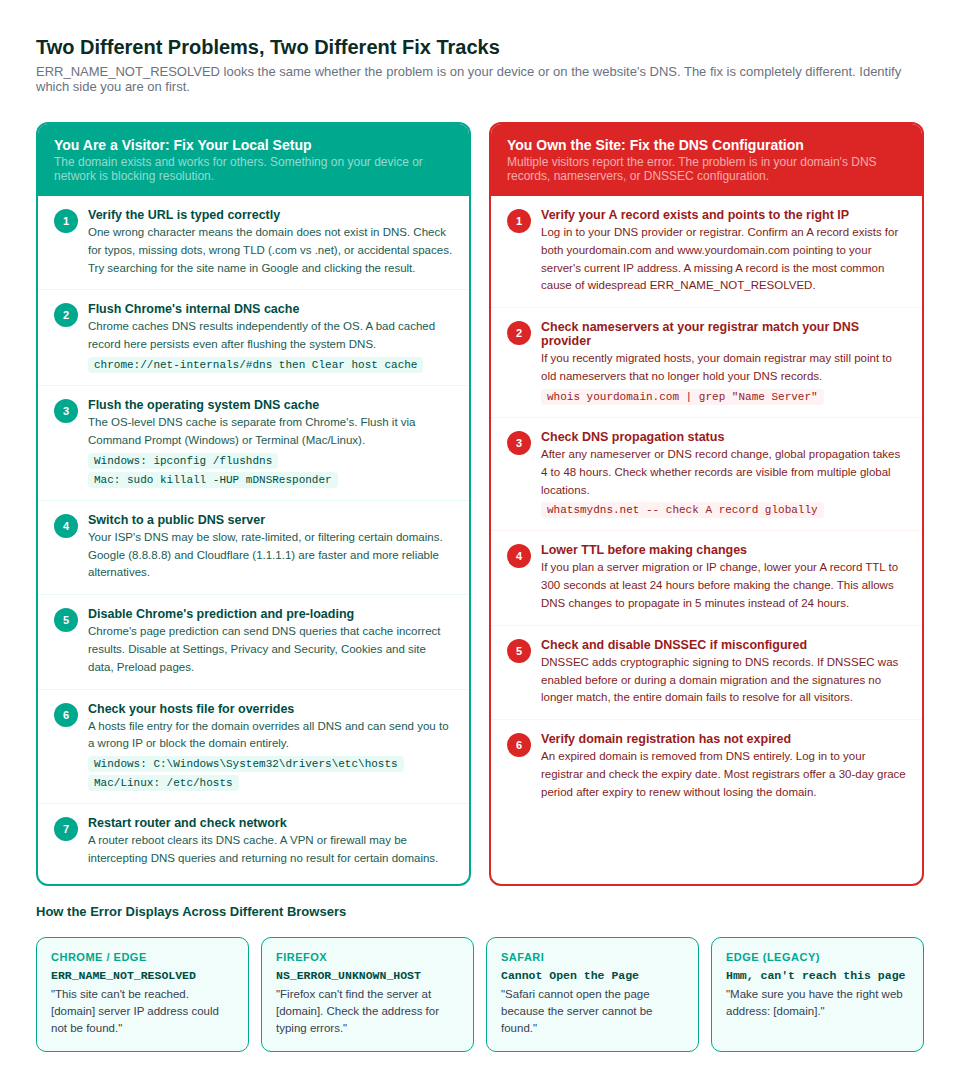
Two Scenarios, Two Completely Different Fix Paths
Before running any command or changing any setting, identify which scenario applies to you. The wrong fix track wastes time and can create new problems.
How to Confirm Which Scenario You Are In
The fastest test is asking someone else to load the site from a different network. If the site loads for them but not for you, the problem is on your device or network. If the site does not load for anyone, the problem is in the domain’s DNS configuration. You can also use an online tool like downforeveryoneorjustme.com to check from an external perspective.
A second quick test: try loading the site from your mobile phone on cellular data (not Wi-Fi). If it loads on cellular but not on your home Wi-Fi, the problem is your local network’s DNS configuration, not the site itself.
Visitor Fixes: Clearing Caches, Switching DNS, and Resetting Network Settings
Step 1: Verify the URL is Typed Correctly
One character wrong in a domain name sends your browser to a domain that genuinely does not exist. DNS cannot resolve a typo because the domain is not registered. Check for missing or extra characters, wrong TLD (.com instead of .org, .co.uk instead of .com), and accidental spaces. If unsure, search for the site name in Google and click the result rather than typing the URL manually.
Step 2: Clear Chrome’s Internal DNS Cache
This is the step that resolves Chrome-specific ERR_NAME_NOT_RESOLVED errors that do not respond to OS-level cache flushing. Open a new Chrome tab and type the following address exactly:
chrome://net-internals/#dns
Click the Clear host cache button. Then navigate to chrome://net-internals/#sockets and click Flush socket pools. These two actions clear Chrome’s stored DNS records and connection state. Close Chrome completely (including background processes) and reopen it before testing.
Step 3: Flush the Operating System DNS Cache
The OS-level DNS cache is separate from Chrome’s. Flushing it removes all locally cached DNS records and forces your device to query the DNS server fresh on the next request.
- Windows (Command Prompt as Administrator): type ipconfig /flushdns and press Enter
- macOS (Terminal): type sudo killall -HUP mDNSResponder and press Enter
- Linux (Terminal): sudo systemctl restart systemd-resolved or sudo /etc/init.d/dns-clean restart depending on your distribution
Step 4: Switch to a Public DNS Server
Your ISP’s default DNS server may be slow, unreliable, filtering certain domains, or simply experiencing temporary downtime. Switching to a reliable public DNS resolver (Google at 8.8.8.8 or Cloudflare at 1.1.1.1) resolves this independently of anything else. See the next section for platform-specific instructions.
Step 5: Check the Hosts File
The hosts file on your local machine can override DNS lookup for any domain. A hosts file entry pointing a domain to 127.0.0.1 or an old IP will cause ERR_NAME_NOT_RESOLVED regardless of what DNS says. Developers who add hosts file entries during testing and forget to remove them frequently encounter this.
On Windows the hosts file is at C:\Windows\System32\drivers\etc\hosts. On Mac and Linux it is at /etc/hosts. Open it with a text editor (as Administrator on Windows). Look for any line that mentions the domain you are trying to reach and either remove it or add a # at the start to comment it out.
How to Change Your DNS Server on Every Platform
Switching DNS servers is the single highest-impact fix for visitor-side ERR_NAME_NOT_RESOLVED errors. The public DNS resolvers maintained by Google and Cloudflare have much higher uptime and faster response times than most ISP-provided DNS servers.
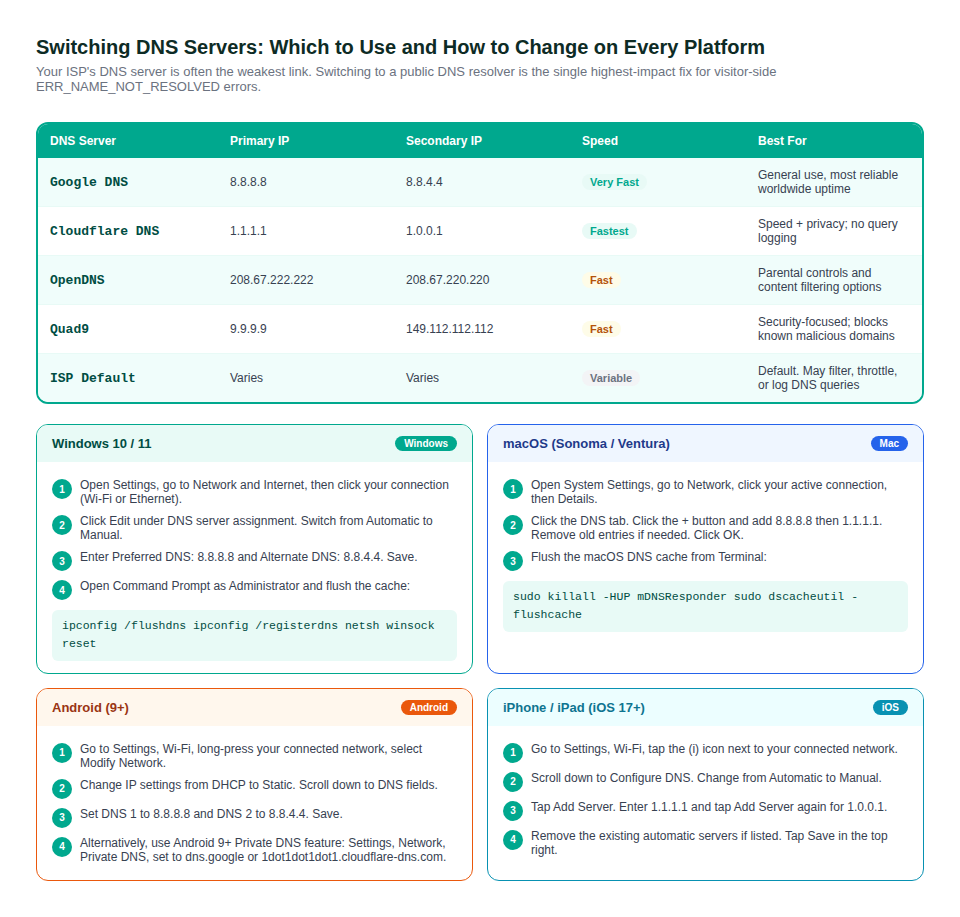
| ! | After changing DNS server settings, flush your OS DNS cache to clear any records stored under the previous server. Otherwise your device may continue using cached results from the old server for the duration of their TTL even though the new server is now configured. |
Chrome-Specific and System-Level Fixes That Most Guides Skip
Several ERR_NAME_NOT_RESOLVED causes are specific to how Chrome handles DNS internally, or specific to Windows network stack behavior. These fixes are not covered in most troubleshooting articles and are worth trying when the standard cache flush and DNS switch do not work.
Chrome Prediction Service and Stale DNS
Chrome’s prediction service pre-resolves domains based on your browsing history, essentially speculating which sites you are about to visit and caching DNS results in advance. When this pre-resolution caches a failed lookup for a domain (for example during a brief DNS outage), Chrome serves that failed result from cache even after the DNS issue is resolved. Disabling the prediction service prevents Chrome from caching speculative DNS failures.
To disable it: open Chrome Settings, go to Privacy and security, click Cookies and other site data, and toggle off Preload pages for faster browsing and searching. Restart Chrome after making this change.
Windows Winsock Reset for Persistent Cases
If the error persists after flushing DNS and switching servers on a Windows machine, the Windows Sockets (Winsock) layer may be corrupted. Winsock handles all network communication at the OS level. A reset restores it to default behavior and resolves DNS issues that are not caused by configuration but by corruption in the network stack itself.
Open Command Prompt as Administrator and run the following commands in order, then restart the computer:
netsh winsock reset
netsh int ip reset
ipconfig /flushdns
ipconfig /release
ipconfig /renew
Site Owner Fixes: DNS Records, Nameservers, DNSSEC, and Propagation
When multiple visitors report ERR_NAME_NOT_RESOLVED at the same time, or when you experience it on your own domain from multiple devices and networks, the issue is in your domain’s DNS configuration. These are the scenarios that affect site owners.
The A Record: The Most Common Cause of Site-Wide ERR_NAME_NOT_RESOLVED
Your domain needs an A record that maps your domain name to your server’s IP address. If this record is missing, wrong, or pointing to an old IP after a server migration, no one can reach your site via the domain name. Log in to your DNS provider (not your hosting panel, unless your host also manages your DNS), find the zone editor, and verify:
- An A record exists for yourdomain.com pointing to your server’s current IPv4 address
- An A record or CNAME exists for www.yourdomain.com
- No A record uses an old IP address from a previous server or hosting plan
If you are unsure what IP your server currently has, check your hosting control panel or run ping yourdomain.com from a different device on a different network to see what IP it resolves to.
Nameserver Mismatch: The Post-Migration Trap
Your domain has two sets of DNS records: the records managed by your DNS provider, and the nameserver settings at your domain registrar that tell the internet which DNS provider to use. When you migrate to a new host, the registrar’s nameserver settings must be updated to point to the new host’s or DNS provider’s nameservers.
If you updated your DNS records at the new provider but forgot to update the nameserver settings at your registrar, every DNS lookup is still going to the old nameservers at the old provider, which no longer hold your records. The domain appears to have no DNS records even though you can see them in the new DNS panel.
Check your registrar’s nameserver settings and compare them against what your DNS provider requires. Use whois yourdomain.com from a terminal to see the currently active nameservers.
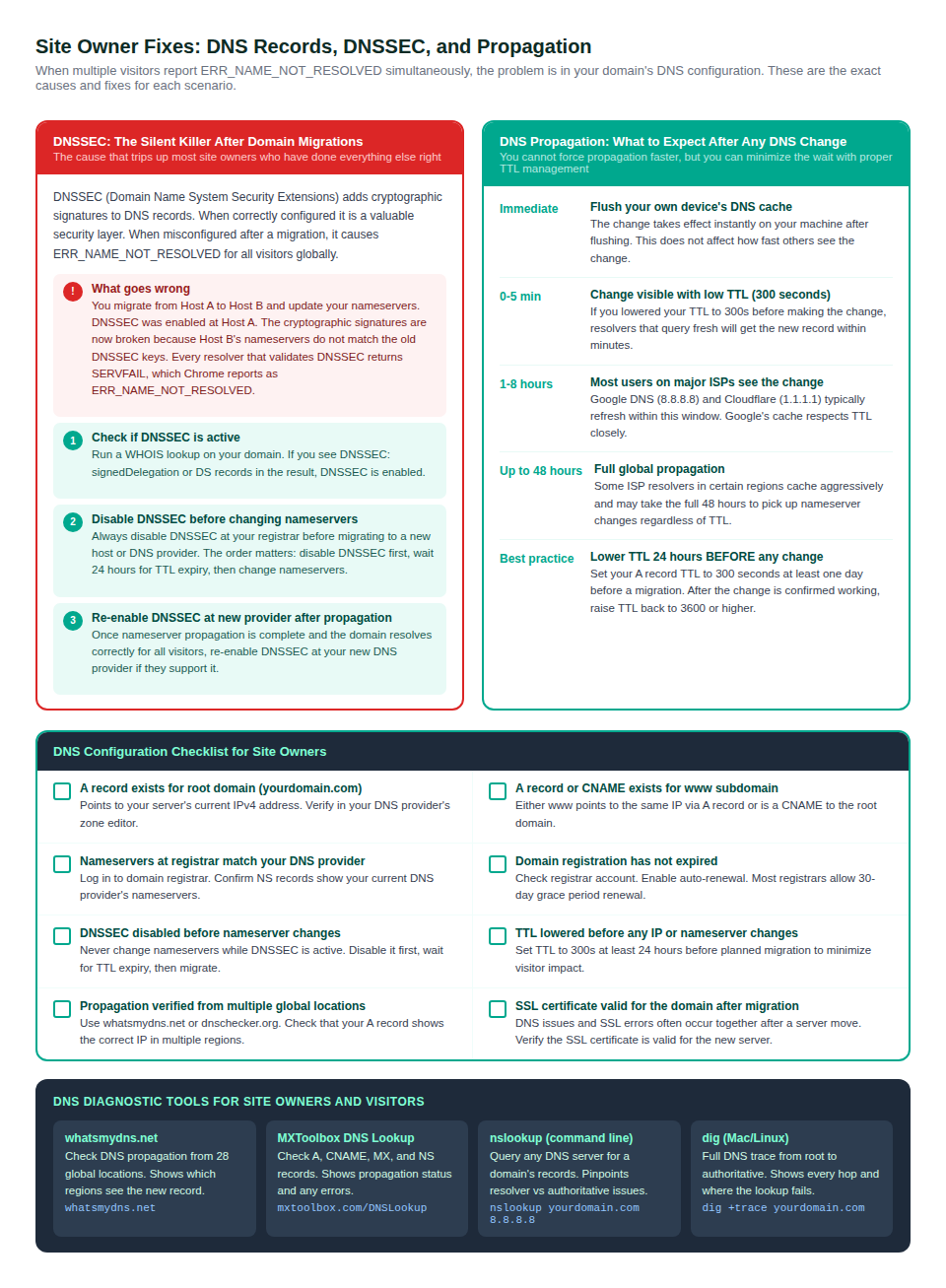
DNSSEC: The Most Damaging Post-Migration DNS Error
DNSSEC (Domain Name System Security Extensions) adds cryptographic signatures to DNS records, allowing resolvers to verify that records have not been tampered with. When correctly configured, DNSSEC is a valuable security layer. When misconfigured after a migration, it causes ERR_NAME_NOT_RESOLVED for all visitors globally, often for hours.
The scenario that triggers this most often: you migrate from Host A to Host B and update your nameservers at the registrar. DNSSEC was enabled and set up at Host A. The cryptographic DS records at the registrar now point to DNSSEC keys from Host A’s nameservers. Host B’s nameservers have different keys. Resolvers that validate DNSSEC receive a signature mismatch and return SERVFAIL, which Chrome reports as ERR_NAME_NOT_RESOLVED.
The correct order for any migration involving DNSSEC: disable DNSSEC at the registrar first, wait for the DS records’ TTL to expire (typically 24 hours), then change nameservers to the new provider. Once nameserver propagation is confirmed complete, re-enable and reconfigure DNSSEC at the new provider if desired.
| ! | Disabling DNSSEC temporarily during a migration does not make your site less secure in any meaningful way. The brief window without DNSSEC is far less risky than leaving DNSSEC enabled with mismatched signatures, which makes your domain completely unreachable. |
Reading Related DNS Error Codes: What Each One Tells You
Chrome uses several different error codes for DNS-related failures. Each one points to a different stage of the resolution chain. Knowing which code you are seeing narrows the diagnosis considerably.
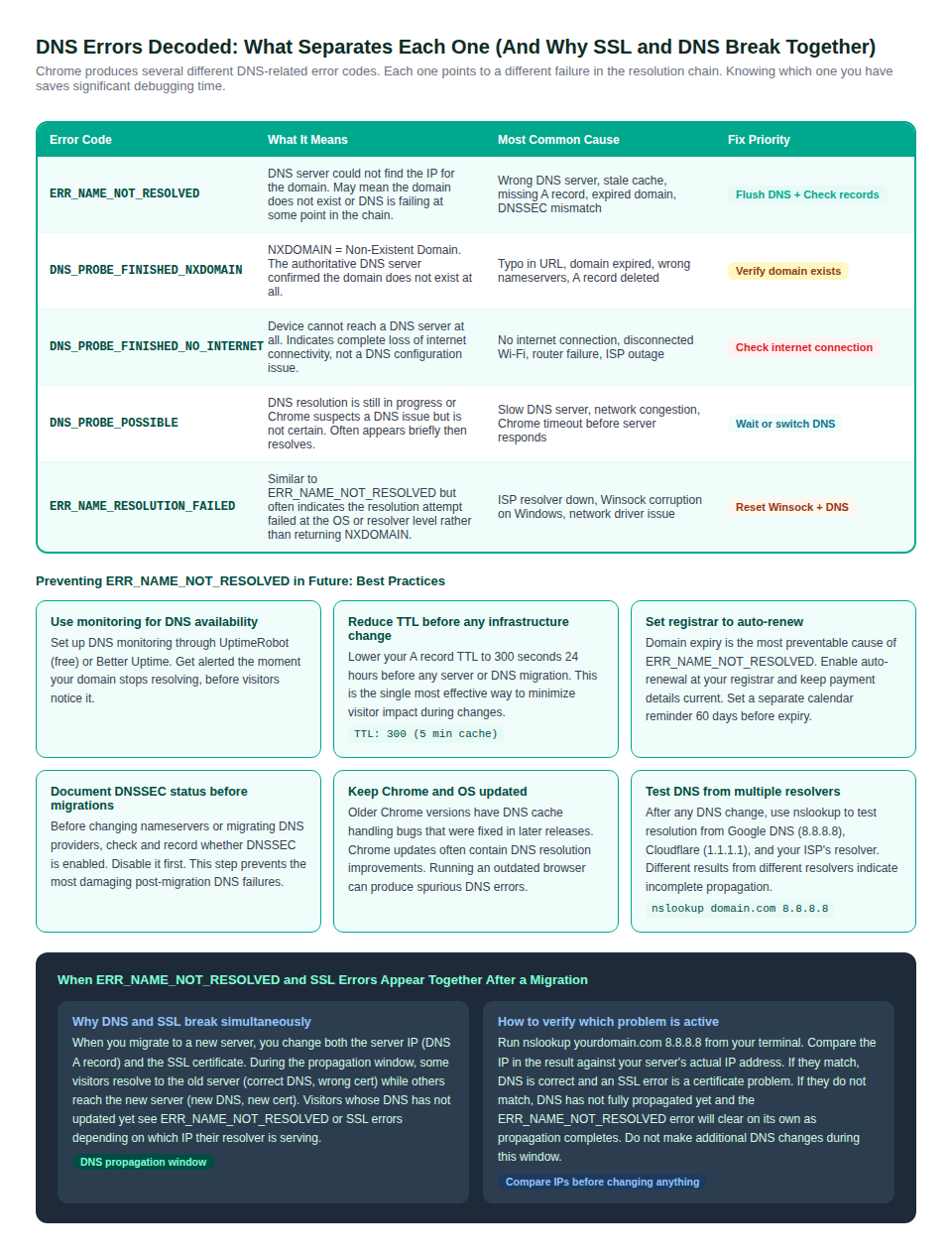
DNS_PROBE_FINISHED_NXDOMAIN: The Domain Does Not Exist
NXDOMAIN stands for Non-Existent Domain. This error means the authoritative DNS server confirmed definitively that the domain does not exist in DNS. This is a harder failure than ERR_NAME_NOT_RESOLVED because it is not a lookup failure but a definitive negative response. The most common causes are a URL typo that sends Chrome to a domain that was never registered, a domain that has expired and been removed from DNS, and A records deleted from the zone without being replaced.
DNS_PROBE_FINISHED_NO_INTERNET: Your Device Is Offline
This error is fundamentally different from ERR_NAME_NOT_RESOLVED. It means Chrome cannot reach a DNS server at all, which indicates a complete loss of internet connectivity rather than a DNS configuration issue. The site itself is irrelevant. Check your Wi-Fi or Ethernet connection, restart your router, and confirm other websites are reachable before investigating DNS settings.
When DNS and SSL Errors Appear Together After a Migration
A server migration changes both the IP address (requiring DNS A record updates) and the SSL certificate (requiring a new certificate installation on the new server). During the DNS propagation window, visitors are split: some resolve to the old server (their cached DNS still points to the old IP), while others resolve to the new server (their resolvers picked up the updated A record).
The confusion arises because you may see both ERR_NAME_NOT_RESOLVED (from visitors whose DNS cache went stale) and SSL certificate errors (from visitors who reached the new server before its certificate was installed) during the same window. Use nslookup yourdomain.com 8.8.8.8 to check the current A record. If the IP matches your new server, DNS is correct and any remaining errors are SSL-related. If the IP still shows the old server’s address, DNS propagation is not complete.
Frequently Asked Questions
What is ERR_NAME_NOT_RESOLVED and what causes it?
ERR_NAME_NOT_RESOLVED is a Chrome error that appears when the browser cannot translate a domain name into an IP address. It fires when any stage of the DNS resolution chain fails: the browser’s own DNS cache contains a stale or empty record, the operating system’s cache is corrupted, your ISP’s DNS server is down or filtering the domain, or the domain’s authoritative DNS records are missing, wrong, or affected by a DNSSEC misconfiguration. The site’s server may be running correctly while only the DNS lookup is broken.
Why do I get ERR_NAME_NOT_RESOLVED in Chrome but not in Firefox or Safari?
Chrome maintains its own internal DNS cache at chrome://net-internals/#dns, separate from the OS-level DNS cache that Firefox and Safari use. A stale or failed DNS record stored in Chrome’s internal cache will produce ERR_NAME_NOT_RESOLVED in Chrome while other browsers, using fresh DNS lookups through the OS, load the page without issue. The fix is to clear Chrome’s DNS host cache specifically at chrome://net-internals/#dns rather than only flushing the system DNS.
How do I fix ERR_NAME_NOT_RESOLVED on Android or iPhone?
On Android, go to Wi-Fi settings, long-press your connected network, select Modify Network, change IP settings from DHCP to Static, and set DNS 1 to 8.8.8.8 and DNS 2 to 8.8.4.4. Android 9 and later also supports Private DNS under Network settings for a system-wide alternative. On iPhone, go to Settings, Wi-Fi, tap the info icon on your network, tap Configure DNS, switch to Manual, and add 1.1.1.1 and 1.0.0.1 as DNS servers. Also try forgetting the Wi-Fi network and reconnecting, which clears cached network configuration.
My DNS records look correct but visitors still see ERR_NAME_NOT_RESOLVED. Why?
Three scenarios cause this. First, DNS propagation may not be complete. After changing DNS records, resolvers that already cached the old record continue serving it until the TTL expires. Check propagation status from multiple global locations at whatsmydns.net. Second, DNSSEC may be misconfigured. If DNSSEC is enabled and the cryptographic signatures do not match (common after nameserver migrations), resolvers that validate DNSSEC return SERVFAIL regardless of whether your A records are correct. Third, the nameservers at your domain registrar may not match your DNS provider, meaning lookups go to old nameservers that no longer hold your records.
Can ERR_NAME_NOT_RESOLVED affect just one page on my site, or does it affect the whole domain?
ERR_NAME_NOT_RESOLVED is a domain-level DNS error, not a page-level error. It affects all pages on the domain simultaneously because DNS operates at the domain name level, not at individual URL paths. If you are seeing the error only on specific paths but the domain loads for others, the error is likely a different code being displayed incorrectly, a server-side 404 or redirect issue, or a caching anomaly on the specific device showing the error.
How long does DNS propagation take after I fix my DNS records?
Propagation time depends on the TTL value that was set on the records before you made the change. If the TTL was 3600 seconds (one hour), most resolvers will pick up the new record within one hour of the change. If the TTL was 86400 seconds (24 hours), some resolvers will continue serving the old record for up to 24 hours. Nameserver changes propagate more slowly than A record changes, typically taking 4 to 48 hours globally. You can reduce future propagation windows by lowering your TTL to 300 seconds at least 24 hours before any planned infrastructure change.
Does ERR_NAME_NOT_RESOLVED mean my SSL certificate has a problem?
Not directly. ERR_NAME_NOT_RESOLVED is a DNS failure that fires before Chrome even attempts to establish an HTTPS connection. The SSL certificate is never checked because the browser cannot resolve the domain to an IP address in the first place. However, DNS failures and SSL errors can appear together after a server migration: the DNS error appears while propagation is incomplete, and SSL errors may appear once DNS resolves but the certificate is not yet installed on the new server. Treat each error separately and fix the DNS issue before investigating SSL.

