You click a link and nothing loads. Instead of the page you wanted, your browser throws a three-digit code at you and offers no real explanation. If that sounds familiar, you are not alone. Browser error codes confuse website visitors and frustrate site owners in equal measure.
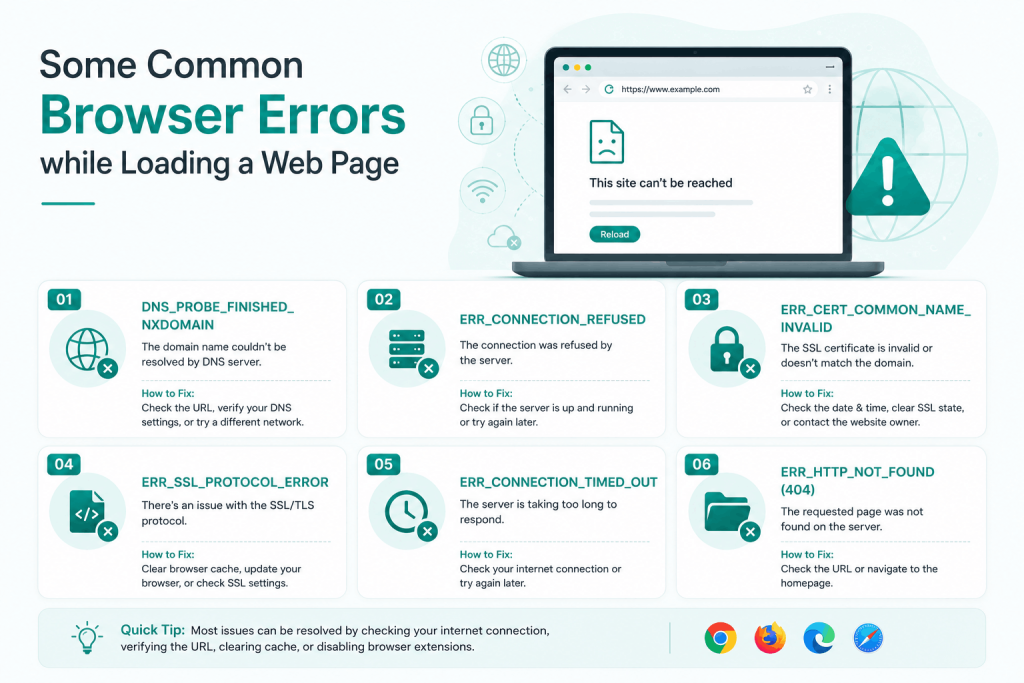
This guide approaches these errors differently from most resources online. Rather than just listing what each code means, it explains which errors signal a problem on your end, which ones the website owner must fix, and which errors quietly damage a site’s search rankings over time. By the end, you will know exactly what to do the moment any of these errors show up.
| WHAT IS AN HTTP STATUS CODE? | An HTTP status code is a three-digit number sent from a web server to your browser in response to every page request. Most of the time you never see these codes because the response is a 200 (success). You only see error codes when something breaks. They are grouped into five classes: 1xx informational, 2xx success, 3xx redirection, 4xx client errors, and 5xx server errors. |
Which Browser Errors Happen Most Often
Not all errors are equally common. The chart below shows the relative frequency of HTTP error codes across typical web traffic. The 404 error alone accounts for more than 65% of all HTTP errors users encounter, yet most sites treat it as a low-priority issue.
Figure 1: Relative frequency of HTTP error codes across web traffic. 404 dominates, followed by 500-series server errors.
When You Enter a URL: Where Each Error Type Originates
Before diving into individual error codes, it helps to see the complete journey of a browser request. There are four distinct stages where things can break, and the stage determines what kind of error you see and who is responsible for fixing it.
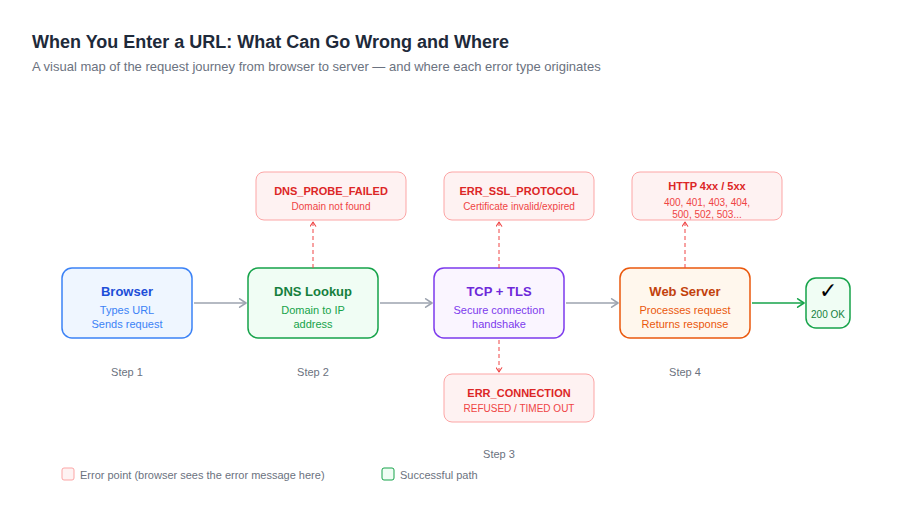
The critical distinction most guides miss: HTTP errors (400s, 500s) occur when browser and server have successfully communicated, but the server rejects or cannot fulfill the request. Browser errors (ERR_SSL_PROTOCOL_ERROR, ERR_CONNECTION_REFUSED) occur before any server communication happens at all. The fix approach for each is completely different.
4xx Client-Side Errors: When the Problem Is in the Request
4xx errors indicate a problem on the client side. The server received the request but could not fulfill it for a specific reason.
400 Bad Request
A 400 error tells you the server understood the request format but rejected it because something in the request itself was malformed or invalid.
| DEFINITION | A 400 Bad Request error occurs when the server cannot process a request due to client-side issues such as invalid syntax, corrupted browser cookies, or oversized request headers. The server does not proceed with the request. |
The three most common triggers:
- A corrupt browser cookie sending garbled session data to the server
- A URL containing invalid characters or improperly encoded special characters
- A manually crafted HTTP request with syntax mistakes
Steps to fix a 400 error:
- Clear your browser cookies and cache for the specific domain showing the error.
- Check the URL in your address bar for unusual characters or spaces.
- Try the page in a private/incognito window where no cookies are stored.
- If the error persists across multiple browsers, the problem is server-side.
401 Unauthorized
| DEFINITION | A 401 Unauthorized error is a server response indicating that access to the requested resource is blocked until valid login credentials are provided. It is an intentional authentication gate, not a bug. |
This error has two distinct scenarios: the page legitimately requires a login and you need valid credentials, or the site has deliberately restricted access from your user type. If no login prompt appears alongside a 401, the restriction is intentional and cannot be bypassed by a visitor.
403 Forbidden
| DEFINITION | A 403 Forbidden error means the server understood the request and identified the user, but access to the resource is explicitly denied regardless of credentials. This is a permission-level block, not an authentication failure. |
The key difference from 401: a 401 says ‘prove who you are.’ A 403 says ‘I know who you are, and you still cannot have this.’ For website owners seeing 403 errors on their own pages, the fix involves file permissions in cPanel:
- Files: set to 644 (owner reads/writes; others read only)
- Folders/Directories: set to 755 (owner has full access; others read and execute)
Navigate to cPanel, open File Manager, go to public_html, and update permission values for any file or directory triggering the 403 error.
404 Not Found
| DEFINITION | A 404 Not Found error means the server successfully processed the request but could not locate the specified resource. The page may have been deleted, moved to a different URL, or the requested URL was never valid. |
Websites with excessive 404 errors see a 12% drop in user trust, and fixing broken links improves crawl rates by 18%. (Source: Page Optimizer Pro, 2025) Every unresolved 404 that previously had SEO value should receive a 301 redirect to the most relevant live page. Leaving them as bare 404s wastes crawl budget and abandons any link equity the old URL had accumulated.
| ! | Do not redirect all deleted pages to your homepage by default. A redirect to an irrelevant page is nearly as damaging as no redirect at all in Google’s eyes. Match the redirect destination to the content that was there. |
5xx Server-Side Errors: When the Problem Is on the Host
5xx errors indicate that the server received a valid request but could not complete it. These are almost always outside a visitor’s control. Site owners and hosting providers carry responsibility for diagnosing and resolving them.
500 Internal Server Error
| DEFINITION | A 500 Internal Server Error is a catch-all server response indicating an unexpected condition prevented the server from fulfilling the request. It does not pinpoint a cause, making it one of the more difficult errors to debug without server log access. |
The most reliable diagnostic path goes through server error logs. In cPanel-based hosting:
- Log into cPanel and click Errors under Metrics.
- Read the log entries to identify the specific file or line throwing the error.
- If the log mentions .htaccess, make a backup of the file, then remove or comment out recently added lines.
- If the log mentions a specific PHP file, check that file for syntax errors or missing dependencies.
| ! | Renaming the .htaccess file to .htaccess_old temporarily disables its rules and lets you confirm whether it is the source of the 500 error. Always restore or fix it afterward. |
502 Bad Gateway
| DEFINITION | A 502 Bad Gateway error occurs when a server acting as a gateway or proxy receives an invalid or no response from an upstream server. The servers can communicate with each other, but the upstream server’s response is broken or missing. |
Common causes: server overload due to traffic spikes, a recent server migration where DNS has not propagated, firewall rules blocking inter-server communication, or routine maintenance taking a dependency server offline. Most 502 errors resolve within 10-15 minutes. Press CTRL+F5 to force a fresh page load, then wait.
503 Service Unavailable
| DEFINITION | A 503 Service Unavailable error means the server is temporarily unable to process requests, typically because it is overloaded with traffic or undergoing scheduled maintenance. Unlike a 500 error, a 503 implies the problem is known and expected to resolve. |
There is usually nothing a visitor can do except wait. Check the site’s social media accounts for maintenance announcements, or use Google’s cache to view a recent snapshot of the page by searching ‘cache:example.com’ in Google.
Browser-Native Errors: SSL, DNS, and Connection Failures
These errors appear before any server communication takes place. They are generated by the browser itself, which is why they display the browser’s own error messaging rather than a standard HTTP code.
ERR_SSL_PROTOCOL_ERROR
| DEFINITION | ERR_SSL_PROTOCOL_ERROR means the browser attempted to initiate an encrypted HTTPS connection but the process broke down due to an incompatible, expired, or misconfigured SSL/TLS certificate on the server side. |
The most common triggers for site owners: SSL certificate has expired (certificates require annual renewal), the TLS version on the server is outdated (Chrome no longer accepts TLS 1.0 or 1.1), or DNS propagation is still in progress after a server change.
For visitors seeing this after a valid SSL certificate has been confirmed: clear the SSL state cache in browser settings, verify your system’s date and time are accurate (an incorrect system date causes SSL validation to fail), and temporarily disable browser extensions as some VPN or antivirus tools interfere with SSL negotiation.
ERR_CONNECTION_REFUSED
| DEFINITION | ERR_CONNECTION_REFUSED means the server received the connection request and explicitly refused it. This indicates the service is not running on the expected port, a firewall is blocking access, or the server is fully offline. |
Visitor steps to try first:
- Check your internet connection on another site to rule out a local network issue.
- Try a different browser or device to isolate whether the issue is local to your setup.
- Flush your DNS cache. On Windows: ipconfig /flushdns in Command Prompt. On Mac: sudo killall -HUP mDNSResponder.
- Switch to a public DNS resolver. Google (8.8.8.8) or Cloudflare (1.1.1.1) as alternatives to your ISP’s default DNS.
DNS_PROBE_FINISHED_NXDOMAIN
NXDOMAIN stands for ‘Non-Existent Domain.’ This error specifically means the domain name you typed does not exist in the DNS system, or your device cannot reach the DNS server to look it up. If you are certain the domain exists, the problem is your DNS resolution path. Flushing the DNS cache and switching to a public DNS resolver resolves this in most cases.
NET::ERR_CERT_AUTHORITY_INVALID
This Chrome error appears when the site’s SSL certificate was issued by a certificate authority that Chrome does not recognize or trust. On public-facing websites, it usually indicates either an incomplete certificate chain (missing intermediate certificates) or a certificate from a non-standard authority. Self-signed certificates used in development environments also trigger this error.
Same Error, Different Name: How Browsers Label Identical Problems
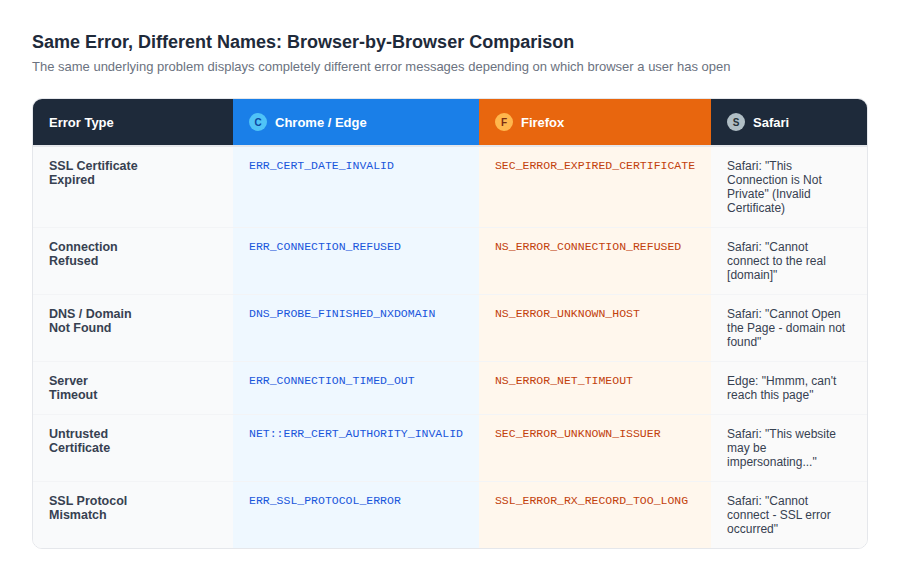
One overlooked frustration in support and debugging is that different browsers display the same underlying error under completely different names. A Chrome error labeled ERR_CONNECTION_REFUSED is the same problem as Firefox’s NS_ERROR_CONNECTION_REFUSED. The visual below maps the most common errors across browsers.
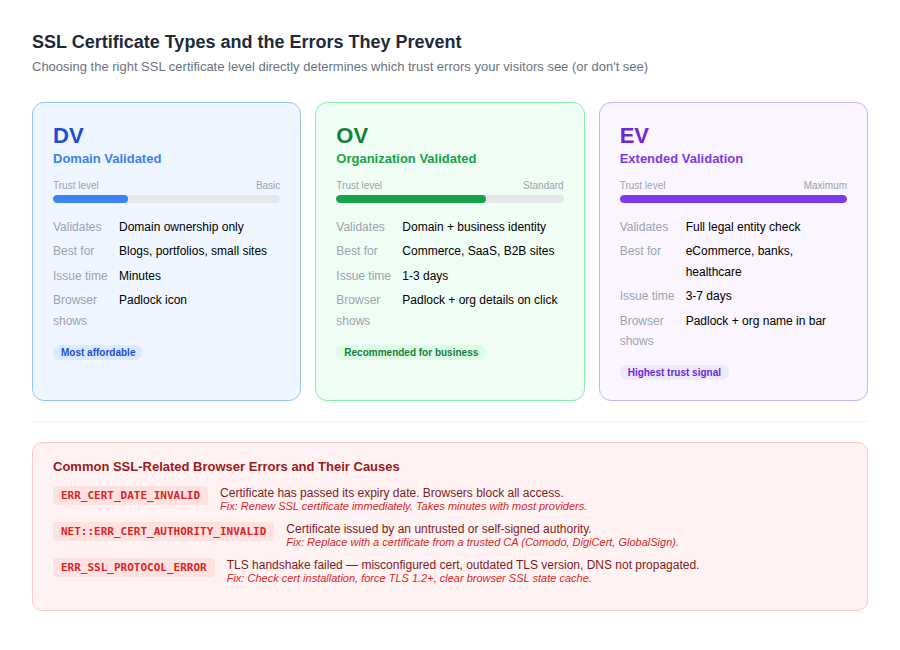
SSL Certificate Types and the Browser Errors Each One Prevents
The type of SSL certificate installed on a website directly determines which browser trust errors visitors may encounter. Understanding the difference between DV, OV, and EV certificates is practical knowledge for any site owner, not just a technical footnote.
The SEO Cost of Unresolved Browser Errors
Most content on browser errors stops at the fix and ignores the search ranking consequences. This is a costly gap for site owners managing multiple pages.
Search engines do not just crawl for content. They crawl for signals of reliability. When Googlebot repeatedly hits a page and receives 4xx or 5xx errors, it adjusts how it evaluates that page and sometimes the entire domain.
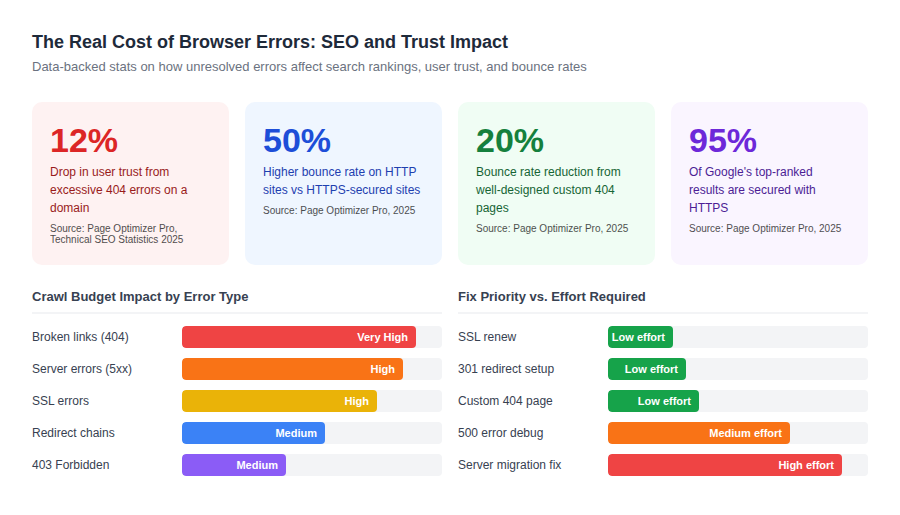
The single most actionable step: check your Google Search Console Coverage report. It shows exactly which URLs are returning 404, redirect loops, or server errors to Googlebot. Running this audit monthly prevents small broken-link problems from compounding into ranking drops.
| ! | 95% of Google’s top-ranked search results use HTTPS. If your site is still on HTTP or showing SSL errors, you are competing at a structural disadvantage against every secure site in your niche. (Source: Page Optimizer Pro, 2025) |
Error Fix Priority Matrix: How to Triage When Multiple Problems Exist
Not every error demands the same urgency. When a site is dealing with multiple issues at once, using a priority framework prevents spending time on low-impact fixes while critical errors drain traffic and rankings.
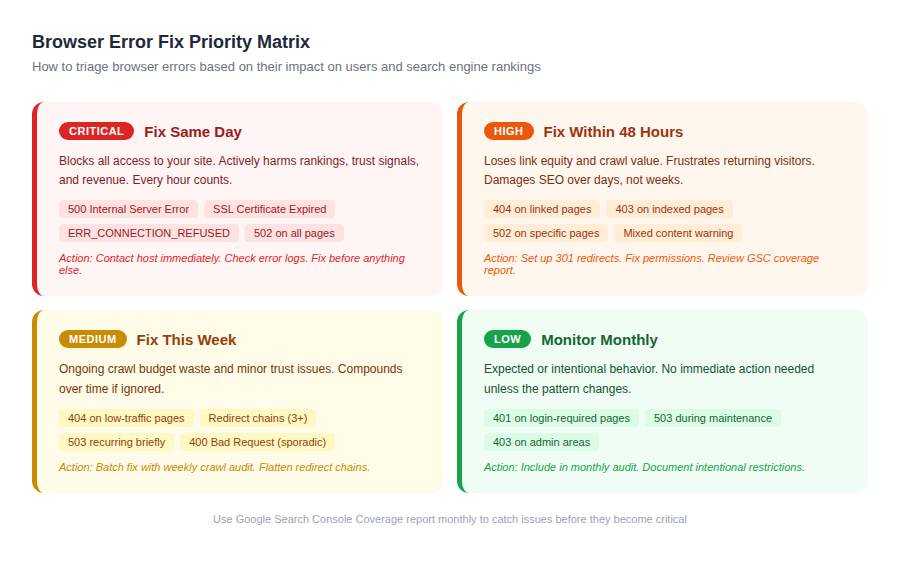
Symptom-to-Solution: Fast Troubleshooting Reference
When an error hits in real-time, use this table to identify the most likely fix based on what you are seeing.
| Symptom You See | First Step | If That Fails |
| Page shows 404 | Check URL spelling; confirm page exists on site | Run 404 audit in Screaming Frog or GSC |
| Blank page or 500 error | Check PHP error logs in cPanel under Metrics | Review .htaccess file; contact host |
| 403 on your own page | Set file permissions to 644 / folder to 755 in cPanel | Check index.php exists in directory |
| SSL warning in browser | Click padlock icon to check cert expiry date | Renew SSL certificate from provider |
| 502 Bad Gateway | Reload with CTRL+F5 | Contact host; check proxy/CDN configuration |
| ERR_CONNECTION_REFUSED | Test another site to confirm internet is working | Flush DNS; try Google DNS (8.8.8.8) |
| DNS_PROBE error | Flush DNS cache; check URL spelling | Switch to Cloudflare (1.1.1.1) DNS |
| Site down for everyone | Check downdetector.com for widespread outage | Wait 10-15 min; check host status page |
Prevention Checklist: Stopping Errors Before Visitors See Them
Reactive troubleshooting is necessary, but most recurring browser errors are preventable with simple maintenance systems.
SSL Certificate Monitoring
- Set calendar reminders 30 days before your SSL certificate expires
- After any server migration or DNS change, re-verify SSL installation using comparecheapssl.com/ssl-checker/
- Check for mixed content on HTTPS pages using browser developer tools (F12 > Console > filter for ‘Mixed Content’)
- Confirm TLS version support is at least 1.2 on your server (TLS 1.0 and 1.1 are no longer accepted by modern browsers)
Broken Link and 404 Auditing
- Run a monthly crawl using Screaming Frog or Ahrefs to catch new 404 errors before Googlebot does
- Check Google Search Console Coverage report for excluded and erroring pages
- When deleting pages, always set a 301 redirect to the nearest relevant live URL
- Build a custom 404 page that keeps visitors on-site with navigation links and a search bar. Custom 404 pages reduce bounce rates by up to 20%.
Server and Hosting Health Checks
- Use an uptime monitoring service (Uptime Robot, Better Uptime, or Pingdom) that alerts you the moment a 500 or 503 response is detected
- Keep PHP versions and CMS installations up to date to prevent .htaccess and configuration errors
- Review server error logs at least once per month even when no visible errors have been reported
Frequently Asked Questions
What is the most common browser error?
The 404 Not Found error is the most commonly encountered HTTP status code on the internet. It appears whenever a requested URL does not exist on the server, whether because the page was deleted, the URL changed, or the visitor typed the address incorrectly.
Can a browser error hurt my website’s SEO?
Yes. Recurring 404 errors waste Google’s crawl budget and lose the link equity of the missing page. 500 and 503 errors, if persistent, can lead Google to deindex the affected pages. SSL errors cause Chrome to label the site ‘Not Secure,’ which increases bounce rates and reduces time on site.
How do I know if a website is down for everyone or just me?
Go to downdetector.com or isitdownrightnow.com and search for the website in question. These tools check the site’s status from multiple locations globally and tell you whether the issue is widespread or limited to your network or browser.
What is the difference between a 401 and a 403 error?
A 401 error means authentication is required and has not been provided. The server is asking you to log in. A 403 error means the server knows who you are but has explicitly denied access regardless. A 403 cannot be fixed by logging in; it requires a permission change at the server level.
Why does my SSL certificate show an error right after installation?
Three things most often cause post-installation SSL errors: incomplete certificate chains (missing intermediate certificates), DNS propagation that has not finished yet, or a browser SSL cache storing an outdated version of the previous certificate. Clear your browser SSL state cache, wait 24 to 48 hours for full DNS propagation, and verify installation using SSL Labs’ free testing tool at ssllabs.com/ssltest/.
Related Reading on CompareCheapSSL.com
- SSL Errors by Browser: Full breakdown by Chrome, Firefox, Safari, and Edge
- Free SSL Certificate Providers Compared: Which one is right for your site?
- SSL Checker Tool: Verify your certificate installation in seconds
- DV vs OV vs EV SSL: Which certificate type does your site actually need?
- Wildcard SSL Certificates: Cover all your subdomains with a single certificate