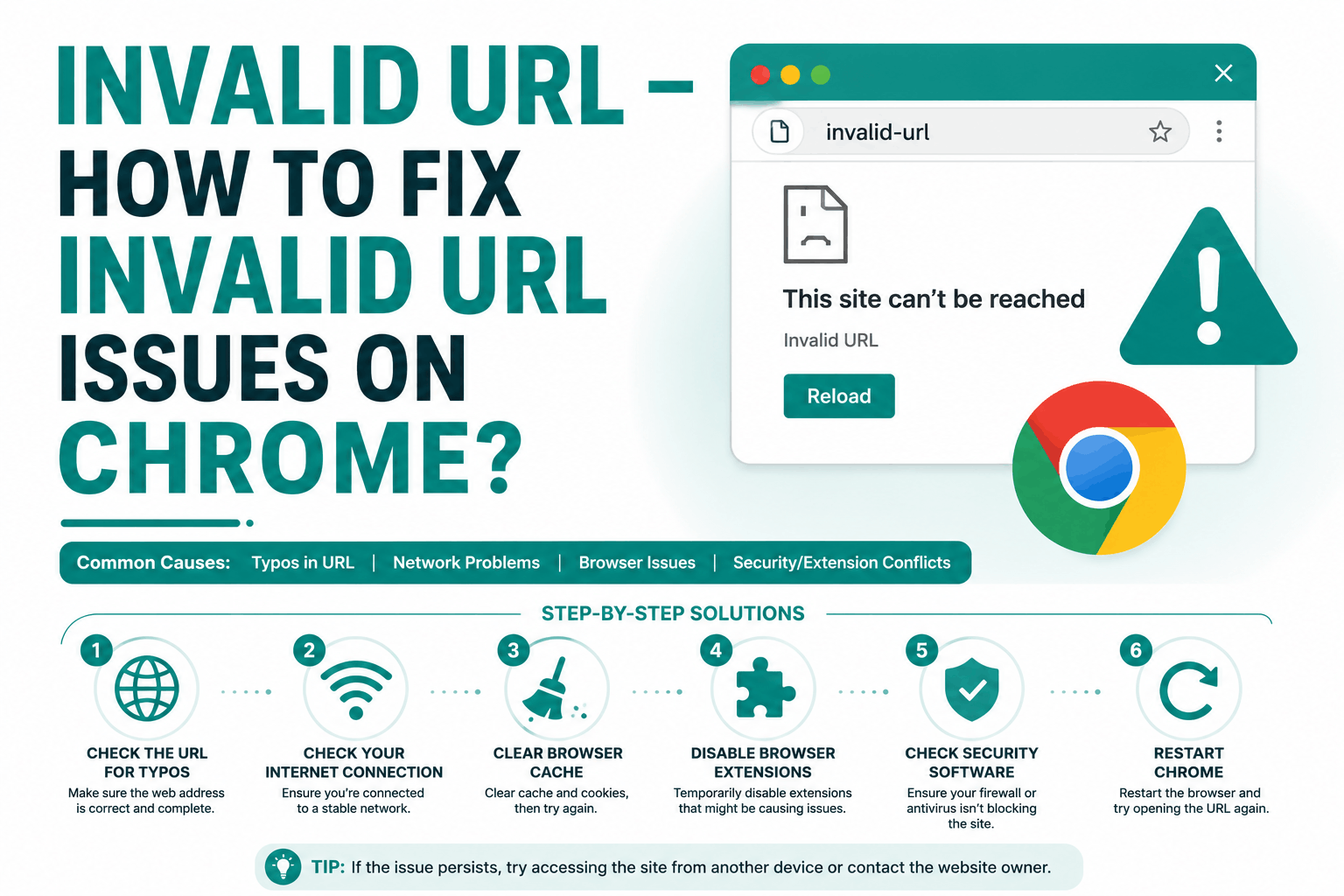
The “Invalid URL” error in Google Chrome can appear when Chrome cannot properly interpret, process, or reach a URL. Although the message sounds straightforward, the underlying cause is not always the URL itself. A malformed address, incorrect URL encoding, browser extension, corrupted browsing data, DNS problem, proxy configuration, broken redirect, or website-side configuration can all produce URL and loading failures.
The first thing to understand is that an Invalid URL problem is different from a certificate error, DNS error, connection refusal, or server timeout. Chrome reports different failures at different stages of the connection process. Identifying that stage before changing settings makes troubleshooting much faster.
Google’s own Chrome troubleshooting documentation recommends first checking the URL, determining whether the problem affects one website or multiple websites, checking the network connection, updating Chrome, testing Incognito mode, disabling extensions, and investigating browser or system configuration.
This guide explains the most common causes of Invalid URL errors in Chrome in 2026 and provides practical solutions for both ordinary users and website administrators.
What Does “Invalid URL” Mean in Chrome?
A URL, or Uniform Resource Locator, identifies the location of a resource on the internet.
A typical HTTPS URL looks like:
https://www.example.com/products/item?id=123
It can contain several components:
- Protocol
- Hostname
- Port
- Path
- Query string
- Fragment
Chrome needs to parse these components before it can make the appropriate request.
If the address contains malformed syntax, unsupported characters, an incorrectly constructed hostname, broken encoding, or an invalid structure, the browser may reject it before a normal HTTP request can be completed.
However, users sometimes describe several different Chrome errors as an “Invalid URL” problem. That is why identifying the exact error message is important.
For example:
| Error | Primary area to investigate |
|---|---|
| Invalid URL | URL structure or browser processing |
ERR_NAME_NOT_RESOLVED |
DNS resolution |
ERR_CONNECTION_REFUSED |
Server, firewall, or network |
ERR_CONNECTION_TIMED_OUT |
Network path or server |
ERR_CERT_COMMON_NAME_INVALID |
Certificate hostname |
ERR_CERT_DATE_INVALID |
Certificate validity period or system clock |
ERR_CERT_AUTHORITY_INVALID |
Certificate trust chain |
ERR_SSL_PROTOCOL_ERROR |
TLS or server configuration |
ERR_TOO_MANY_REDIRECTS |
Redirect configuration |
The exact error therefore matters more than the generic statement that “Chrome cannot open the URL.”
Common Causes of an Invalid URL Error
An Invalid URL or related loading error can originate from several layers of the technology stack.
The most common causes include malformed URLs, spaces or unsupported characters, incorrect URL encoding, broken redirects, browser extensions, cached data, DNS problems, VPN or proxy configuration, website routing errors, incorrect HTTPS configuration, JavaScript-generated URLs, and server-side rewrite rules.
The fastest way to narrow down the cause is to determine whether one URL fails, one website fails, or every website fails.
If only one URL is affected, start by examining that address.
If every website is affected, investigate Chrome, the device, DNS, network connectivity, firewall, or proxy configuration.
If only one website is affected but its homepage works, investigate the specific page, redirects, URL parameters, and application routing.
1. Check the URL Carefully
Start with the simplest possible explanation: the URL may contain a typo or malformed component.
For example:
https://example.com/products
is structurally different from a URL containing accidental spaces, quotation marks, extra punctuation, or incomplete protocol information.
Check the address for:
- Spaces
- Missing characters
- Extra punctuation
- Incorrect slashes
- Duplicate protocol prefixes
- Broken domain names
- Unusual symbols
- Truncated query parameters
- Characters accidentally copied from surrounding text
This is particularly important when a URL has been copied from an email, PDF, document, messaging application, or social media post.
Long URLs can also be wrapped across multiple lines by applications, making it easy to copy an unintended character.
Google specifically recommends checking the website address for mistakes when troubleshooting Chrome connection and loading errors.
Test the Root Domain
If a long URL fails, remove everything after the domain.
For example, test:
https://example.com
instead of:
https://example.com/products/category?id=93827&source=email
If the root domain loads, the problem is probably associated with the path, query parameters, redirect, or application logic.
If the root domain also fails, move on to DNS, HTTPS, browser, and network troubleshooting.
2. Check HTTP and HTTPS
Modern websites are normally accessed through HTTPS rather than unencrypted HTTP.
Try:
https://example.com
rather than:
http://example.com
However, changing HTTP to HTTPS is not automatically a fix.
The destination server must actually be configured to accept HTTPS connections. That requires an appropriate TLS configuration and a certificate covering the hostname.
This is where it is useful to understand the difference between SSL, TLS, and HTTPS. HTTPS is HTTP transported through TLS, while the certificate participates in the authentication and trust process used to establish the secure connection.
If Chrome displays a specific certificate error instead of an Invalid URL message, investigate the certificate and TLS configuration separately.
3. Remove Spaces and Invalid Characters
URLs have syntax rules.
A common problem occurs when a dynamically generated URL contains literal spaces.
For example:
https://example.com/my products
should not normally contain an unencoded space.
The space can be represented through URL encoding:
https://example.com/my%20products
Other characters can also have special meanings within URLs.
This becomes especially important for applications that dynamically construct addresses from user input.
Search forms, ecommerce filters, tracking links, API requests, and login redirects frequently contain dynamic parameters. If those parameters are inserted into a URL without appropriate encoding, the resulting address can be malformed.
4. Check URL Encoding
URL encoding is particularly important when a URL contains reserved characters.
For example, an ampersand has a special meaning in query strings:
?name=John&company=Example
If the ampersand is actually part of a value rather than a separator, it needs to be encoded appropriately.
The same principle applies to characters such as:
- Spaces
&?#%/
The correct encoding depends on where the value appears in the URL.
If an application generates invalid URLs only for certain search terms, customer names, product names, or parameters, the application’s URL construction logic should be examined rather than changing Chrome settings.
5. Test the URL in Incognito Mode
Chrome extensions and stored browser data can interfere with websites.
Open an Incognito window with:
Ctrl + Shift + N
Then enter the same URL.
If it works in Incognito but not in the normal browser window, the problem may be associated with an extension, cookies, cached data, or another browser-profile setting.
Google recommends Incognito mode as one of its troubleshooting steps for connection and loading problems. If the problem disappears there, Google advises investigating extensions and browsing data.
Do not assume that every extension is harmless simply because it does not visibly modify a page. VPN, privacy, security, redirect, ad-blocking, and URL-management extensions can influence browser behavior.
6. Disable Chrome Extensions
If Incognito testing suggests that your normal Chrome profile is responsible, disable extensions temporarily.
Open:
Chrome → Extensions → Manage Extensions
Disable extensions and test the affected URL again.
If the problem disappears, re-enable extensions individually until the problematic extension is identified.
Pay particular attention to extensions that:
- Modify URLs
- Redirect pages
- Manage VPN connections
- Filter traffic
- Block scripts
- Modify privacy settings
- Intercept requests
- Control cookies
Google recommends disabling extensions when a connection or loading problem disappears in Incognito mode.
7. Clear Chrome Cache and Browsing Data
Corrupted or stale browser data can sometimes cause unexpected loading behavior.
Chrome allows you to remove cached images and files, cookies, and other browsing data.
Open Chrome settings and navigate to:
Privacy and security → Delete browsing data
Start by clearing cached files rather than immediately deleting everything.
Cookies can contain authentication sessions and website preferences, so deleting them may sign you out of websites.
If the URL works after clearing the cache, the problem was likely associated with stale local browser data rather than the website itself.
8. Restart Chrome Completely
A simple browser restart can clear temporary processes and state.
Close Chrome completely and reopen it.
On Windows, make sure Chrome is not still running in the background if you want to perform a full restart.
Google recommends updating Chrome and manually restarting it when connection and loading problems persist.
If restarting Chrome fixes the problem temporarily but it repeatedly returns, investigate extensions, browser profile data, network configuration, or system-level software rather than treating restarting as the permanent solution.
9. Update Chrome
Older browser versions can sometimes encounter compatibility problems with modern websites.
Open:
Chrome → Help → About Google Chrome
Chrome will check for available updates.
Install the update if one is available and restart the browser.
This is particularly relevant when a website has recently changed its TLS configuration, JavaScript framework, security policies, or other browser-facing infrastructure.
10. Flush the DNS Cache
If the URL itself appears valid but Chrome cannot reach the domain, DNS may be involved.
DNS translates domain names into IP addresses.
For example:
example.com
may resolve to an IPv4 or IPv6 address used to reach the server.
On Windows, open Command Prompt as administrator and run:
ipconfig /flushdns
Then restart Chrome and test the website again.
If the issue affects only a particular domain, verify its DNS records.
If multiple websites fail, investigate the local network and DNS resolver.
11. Test Another Network
Changing networks is one of the most useful diagnostic tests.
Try the same URL using:
- Home Wi-Fi
- Mobile hotspot
- Another Wi-Fi network
- Corporate network
- VPN connection or without VPN
If the website works on mobile data but fails on Wi-Fi, the problem may involve the Wi-Fi network, DNS resolver, proxy, firewall, router, or ISP.
If the website fails across every network and browser, the problem is more likely to be associated with the website or URL itself.
Google also recommends checking the internet connection and restarting network equipment when Chrome experiences connection or loading problems.
12. Disable VPN or Proxy Temporarily
VPNs and proxies can affect routing and traffic processing.
A proxy may modify or filter requests, while a VPN changes the network path used to reach the destination.
If the URL works when the VPN is disconnected, investigate the VPN configuration.
On Windows, check:
Settings → Network & Internet → Proxy
Do not remove corporate proxy settings without authorization. Business networks frequently use managed proxies for security and traffic inspection.
If the problem occurs only on an organizational network, the network administrator may need to investigate it.
13. Check Firewall and Antivirus Software
Security software can sometimes interfere with browser connections.
Firewalls and endpoint security products may inspect or block:
- HTTPS connections
- Domains
- URLs
- Network ports
- Certificates
- Applications
- Proxy traffic
Google includes firewall and antivirus checks among its recommended troubleshooting steps for Chrome connection and loading problems.
Do not permanently disable security software merely to make a website load.
Instead, determine whether the security product is blocking the destination and create an appropriate exception only when the website is known to be trustworthy.
14. Check Whether the Website Redirect Is Broken
A website’s homepage can work perfectly while a particular URL produces an error because of a broken redirect.
For example:
https://example.com/login
might redirect to:
https://example.com/auth/login
which could then redirect to an incorrectly constructed destination.
Redirect problems are common after:
- Domain migrations
- HTTP to HTTPS migrations
- CMS changes
- URL restructuring
- Server migrations
- CDN changes
- Reverse proxy changes
If the root domain works but a particular URL does not, inspect the redirect chain.
15. Inspect Redirects With Chrome DevTools
For technical troubleshooting, Chrome DevTools is considerably more useful than repeatedly refreshing the page.
Open DevTools with:
F12
or:
Ctrl + Shift + I
Then select the Network panel and reload the page.
Chrome’s Network panel documentation explains that the panel can record network activity and allow developers to inspect requests and resources loaded by a page.
Look for:
- HTTP status codes
- Redirects
- Failed requests
- Request URLs
- Response headers
- Initiators
- Blocked resources
- API requests
The Chrome DevTools Network reference provides detailed information about recording and analyzing network requests.
This is especially valuable when Chrome’s visible error message does not explain which request actually failed.
16. Look for a 301 or 302 Redirect Chain
A website may return:
301 Moved Permanently
or:
302 Found
before sending the browser to another URL.
A normal redirect is not a problem.
The problem occurs when the destination URL is malformed, inaccessible, or repeatedly redirects to another destination.
For example:
URL A → URL B → URL C → Invalid URL
or:
URL A → URL B → URL A
The second example can create a redirect loop.
When troubleshooting, inspect each redirect in the Network panel rather than looking only at the final browser error.
17. Check JavaScript-Generated URLs
Modern web applications frequently construct URLs dynamically.
For example:
https://example.com/user/ + userId
If userId is empty, malformed, or contains unexpected characters, the application may produce an invalid destination.
Common causes include:
- Null values
- Missing variables
- Incorrect API responses
- Improper string concatenation
- Unencoded parameters
- Broken frontend routing
- Incorrect URL decoding
If manually entering the URL works but clicking a button produces an error, JavaScript or application routing deserves attention.
18. Check Relative URLs
Web applications commonly use relative paths such as:
/products
A relative URL is resolved against the current page’s origin and path.
Incorrect routing logic can produce unexpected results after a site migration or domain change.
For example, developers sometimes accidentally generate malformed combinations such as:
/https://example.com
or incorrect protocol-relative URLs.
If a problem occurs only after clicking internal links, inspect the generated HTML and the resulting requests in Chrome DevTools.
19. Check Server Rewrite Rules
Server-side rewrite rules can change incoming URLs or generate redirects.
Apache commonly uses .htaccess, while Nginx uses server configuration directives.
Incorrect rewrite rules can produce:
- Redirect loops
- Broken paths
- Duplicate slashes
- Incorrect domains
- Missing path components
- HTTP/HTTPS conflicts
- Unexpected query strings
If the problem began immediately after changing server configuration, compare the current rewrite rules with the previous working configuration.
Do not change production rewrite rules blindly. Test changes in a controlled environment when possible.
20. Check WordPress URL Configuration
WordPress websites can experience URL problems after domain or HTTPS migrations.
Check:
Settings → General
Review:
- WordPress Address (URL)
- Site Address (URL)
Both should reflect the intended domain and protocol.
Then review:
- Permalink settings
- Redirect plugins
- SEO plugins
- Security plugins
- Caching plugins
- CDN configuration
.htaccessrules
If the problem started after moving from HTTP to HTTPS, investigate the complete redirect and certificate configuration rather than changing only the WordPress URL.
21. Check DNS Records
If the domain does not resolve correctly, inspect its DNS configuration.
For websites, important records may include:
- A
- AAAA
- CNAME
An incorrect A record can point the domain to the wrong IPv4 address.
An incorrect AAAA record can cause problems for clients using IPv6.
A CNAME can also point a hostname toward an unexpected destination.
If the site works from one network but not another, compare DNS resolution across those environments.
22. Check the SSL/TLS Certificate
If the affected URL uses HTTPS, certificate configuration should be checked when Chrome reports a certificate-related error.
An SSL certificate should correctly cover the hostname being requested.
For example, a certificate issued for:
example.com
does not automatically mean that every possible hostname is covered.
The certificate needs appropriate names for the services being secured.
If you are diagnosing an HTTPS issue, understanding the role of SSL certificates within the TLS connection can help distinguish certificate problems from URL parsing or DNS problems.
A certificate issue can produce errors such as:
NET::ERR_CERT_COMMON_NAME_INVALID
NET::ERR_CERT_DATE_INVALID
NET::ERR_CERT_AUTHORITY_INVALID
These should be investigated as certificate or TLS problems rather than treated as ordinary malformed URLs.
23. Check Certificate Revocation
A certificate can become untrusted before its normal expiration date.
This can happen if:
- The private key is compromised
- The certificate was issued incorrectly
- Domain control changes
- The Certificate Authority revokes it
Certificate revocation can be checked through mechanisms such as CRLs and OCSP.
If Chrome reports a certificate status problem, understanding CRL and OCSP certificate revocation is more useful than repeatedly clearing browser data.
A related explanation of the Certificate Revocation List can also help website administrators understand how revoked certificates are identified.
24. Check Whether the Certificate Has Expired
Certificate validity periods are limited.
If the certificate has expired, Chrome can reject the connection or display a security warning.
The same problem can occur when the certificate is not yet valid.
Therefore, check:
- Not Before date
- Not After date
- Hostname
- Certificate chain
- Issuer
- Revocation status
Also verify the computer’s system clock because an incorrect local date can affect certificate validation.
25. Check the Certificate Chain
A server may possess a valid certificate but still be configured incorrectly.
The server generally needs to provide the appropriate certificate chain, including required intermediate certificates.
A missing intermediate certificate can cause trust problems in some client environments.
This is particularly important after:
- Certificate renewal
- Server migration
- Load balancer changes
- CDN migration
- Web server changes
Do not assume that uploading only the leaf certificate is sufficient for every deployment.
26. Check the Hostname Against the Certificate
The requested hostname must be covered by the certificate.
For example:
secure.example.com
should be included in the certificate’s appropriate DNS name coverage.
Modern certificates commonly use the Subject Alternative Name (SAN) extension for this purpose.
A hostname mismatch can generate:
NET::ERR_CERT_COMMON_NAME_INVALID
This is a certificate identity problem, not a normal URL formatting problem.
27. Check the Website From Another Browser
Testing another browser is one of the easiest ways to isolate the problem.
Try:
- Microsoft Edge
- Firefox
- Safari
- Chrome Incognito
If the URL works everywhere except your normal Chrome profile, investigate Chrome-specific configuration.
If it fails in every browser, move the investigation toward DNS, network, server, TLS, or application configuration.
28. Check From Another Device
Testing another device provides another useful comparison.
For example:
Computer + Wi-Fi → fails
Phone + same Wi-Fi → works
This suggests a device-specific issue.
But:
Computer + Wi-Fi → fails
Computer + mobile hotspot → works
suggests that the network may be involved.
This kind of controlled comparison is much more useful than changing several settings at once.
29. Create a Clean Chrome Profile
If the URL works in Incognito but not in the normal browser, a damaged or unusual Chrome profile may be responsible.
Create a new Chrome profile and test the URL without installing extensions.
If it works correctly, compare the original profile’s:
- Extensions
- Cookies
- Site settings
- Proxy behavior
- Browser configuration
A clean profile can be an effective diagnostic tool because it separates browser-profile problems from system-wide problems.
30. Reset Chrome Settings as a Last Resort
Chrome provides a reset option for situations where browser configuration has become problematic.
Google recommends resetting Chrome settings when other troubleshooting steps do not resolve connection and loading issues.
Do not use a browser reset as the first response to a single broken URL.
If one page fails while everything else works, the website or URL itself is more likely to be responsible.
A reset becomes more reasonable when multiple browser-level problems occur simultaneously.
31. Check for Malware or Unwanted Software
Unwanted software can interfere with browser behavior by modifying:
- DNS settings
- Proxy configuration
- Hosts files
- Browser extensions
- Search settings
- Redirect behavior
If Chrome unexpectedly redirects multiple websites or displays unusual behavior, run a security check using reputable security software.
Avoid installing unknown applications advertised as “Chrome repair tools” simply because a website claims your browser is infected.
32. What Website Owners Should Check
If multiple visitors report an Invalid URL problem, the website owner should investigate the server rather than telling every visitor to clear their cache.
Start by checking whether the homepage works.
If the homepage works but a specific URL fails, investigate the page’s:
- URL structure
- Redirect chain
- Query parameters
- JavaScript
- Application routing
- Server rewrite rules
If the entire website fails, check:
- DNS
- Web server
- CDN
- Load balancer
- TLS certificate
- Certificate chain
- Reverse proxy
- Firewall
If the issue started after a certificate renewal, domain migration, CDN change, or server migration, compare the new configuration with the previous working configuration.
33. Check Recent HTTPS Changes
A common source of unexpected URL and loading problems is an HTTPS migration.
For example:
http://example.com
may redirect to:
https://example.com
which then redirects to:
https://www.example.com
which may finally redirect to another application URL.
Every step needs to be valid.
Check that:
- HTTP redirects to the correct HTTPS URL
- HTTPS points to the correct server
- The certificate covers the requested hostname
- The certificate chain is complete
- Canonical URLs use the correct protocol
- Internal links use the intended URLs
- CDN rules do not conflict with origin rules
Understanding how SSL, TLS, and HTTPS work together is useful when diagnosing problems that appear during HTTPS migrations.
34. Check Certificate Renewal and Deployment
Certificate renewal creates another potential failure point.
A new certificate may have been successfully issued but not correctly deployed to every server.
For example:
Certificate renewed
↓
Load balancer updated
↓
Origin server still has old certificate
↓
Some requests succeed
↓
Other requests fail
This type of problem can occur in distributed infrastructure.
Businesses should therefore monitor not only certificate issuance but also actual certificate deployment across production endpoints.
35. Use Chrome DevTools to Find the Exact Failure
For developers, DevTools can often turn a vague browser error into a specific technical problem.
Open:
DevTools → Network
Reload the page and inspect the request sequence.
Chrome’s documentation explains that the Network panel records network requests while DevTools is open and allows developers to inspect request details and network activity.
Look for the first failed request rather than only the final error.
For example:
GET /page → 301
GET /login → 302
GET /invalid-destination → Failed
The third request may be the actual source of the problem.
This is particularly important for websites that rely on JavaScript, APIs, redirects, authentication systems, or complex routing.
36. A Practical Diagnostic Sequence
If you want the fastest systematic approach, follow this order.
Step 1: Verify the URL
Check the domain, protocol, path, query parameters, and unusual characters.
Step 2: Test the root domain
Determine whether the entire website or only one URL is affected.
Step 3: Test Incognito mode
If it works there, investigate extensions and browser data.
Step 4: Test another browser
This determines whether Chrome is involved.
Step 5: Test another network
Use mobile data or another Wi-Fi connection.
Step 6: Check DNS
Determine whether the hostname resolves correctly.
Step 7: Check HTTPS
If a certificate error appears, investigate the certificate rather than the URL.
Step 8: Inspect redirects
Use Chrome DevTools to identify the exact request that fails.
Step 9: Check application-generated URLs
Inspect JavaScript, routing, and dynamic parameters.
Step 10: Investigate recent infrastructure changes
Review DNS, certificates, CDN settings, server configuration, CMS changes, and deployments.
This sequence avoids making several unrelated configuration changes simultaneously, which can make troubleshooting harder rather than easier.
Invalid URL Error vs Certificate Error
These problems should not be treated as identical.
An Invalid URL generally points toward URL structure or browser processing.
A certificate error indicates that Chrome has reached the HTTPS stage and found a problem with certificate identity, validity, trust, or related TLS configuration.
For example:
Invalid URL
The browser cannot properly process the destination address.
Certificate hostname error
The browser received a certificate that does not properly identify the requested hostname.
Certificate expiration error
The certificate’s validity period has ended or the local system time is incorrect.
Certificate authority error
The browser cannot establish the required trust relationship with the certificate issuer.
Understanding this distinction prevents unnecessary troubleshooting.
How to Prevent Invalid URL Problems
Website owners can prevent many URL problems by treating URL construction as part of application quality rather than an afterthought.
Dynamic values should be properly encoded.
URLs should be generated consistently.
Redirects should be tested after deployments.
HTTPS migrations should be tested before production changes.
DNS should be monitored.
Certificate renewal should be automated where appropriate.
CDN and reverse proxy rules should be reviewed after infrastructure changes.
Application-generated links should be tested with edge cases.
Developers should also test URLs containing spaces, special characters, Unicode characters, long query strings, empty parameters, and unexpected input.
For HTTPS infrastructure, certificate lifecycle management is equally important because a certificate can be valid at issuance but later expire, become revoked, or be incorrectly deployed.
Final Thoughts
The Chrome Invalid URL error is best treated as a diagnostic problem rather than a single browser setting that needs to be changed.
A malformed URL can be the cause, but so can a broken redirect, improperly encoded parameter, browser extension, DNS problem, proxy, firewall, JavaScript application, server rewrite rule, or HTTPS configuration.
The most effective approach is to isolate the layer where the failure occurs.
Start with the URL itself. Determine whether the problem affects one page or the entire domain. Test Incognito mode and another browser, then compare networks. If the problem persists, investigate DNS, redirects, HTTPS, certificates, and application routing. Developers should use Chrome DevTools to inspect the actual request sequence rather than relying only on the browser’s final error message.
For website owners, preventing these problems requires consistent URL generation, reliable redirect management, correct DNS configuration, properly deployed TLS certificates, and continuous monitoring of the infrastructure responsible for serving the website.
In other words, fixing an Invalid URL error is not about trying random Chrome settings. It is about identifying where the URL request breaks and addressing that specific layer.
Frequently Asked Questions
Why does Chrome say Invalid URL?
Chrome can display URL or loading errors when an address is malformed, contains unexpected characters, is generated incorrectly by an application, or cannot be processed correctly. Browser extensions, network configuration, redirects, and website-side problems can also contribute to related errors.
Why does the URL work in another browser?
If the URL works in another browser, Chrome-specific configuration becomes more likely. Test Incognito mode first, then investigate extensions, cached data, and the Chrome profile.
Can an SSL certificate cause an Invalid URL error?
A certificate problem normally produces a specific TLS or certificate error rather than a pure URL parsing error. However, incorrect HTTPS redirects, hostname configuration, reverse proxies, and certificate deployment can contribute to broader website loading failures.
Why does only one page fail?
If the homepage works but one URL fails, investigate that page’s path, query parameters, redirects, JavaScript, and application routing. A website-wide browser reset is unlikely to solve a malformed application URL.
Why does the website work on mobile data but not Wi-Fi?
This usually indicates a network-specific issue. DNS, proxy configuration, firewall rules, routing, VPNs, or ISP behavior may differ between the two connections.
Should I clear Chrome’s cache?
It is a reasonable troubleshooting step when stale browser data is suspected, but it should not be the default answer to every Invalid URL problem. First determine whether the problem affects one URL or the entire website.
When should a website administrator investigate the server?
If the same URL fails across multiple browsers, devices, and networks, the website owner should investigate DNS, redirects, server configuration, CDN behavior, application routing, and HTTPS configuration.