
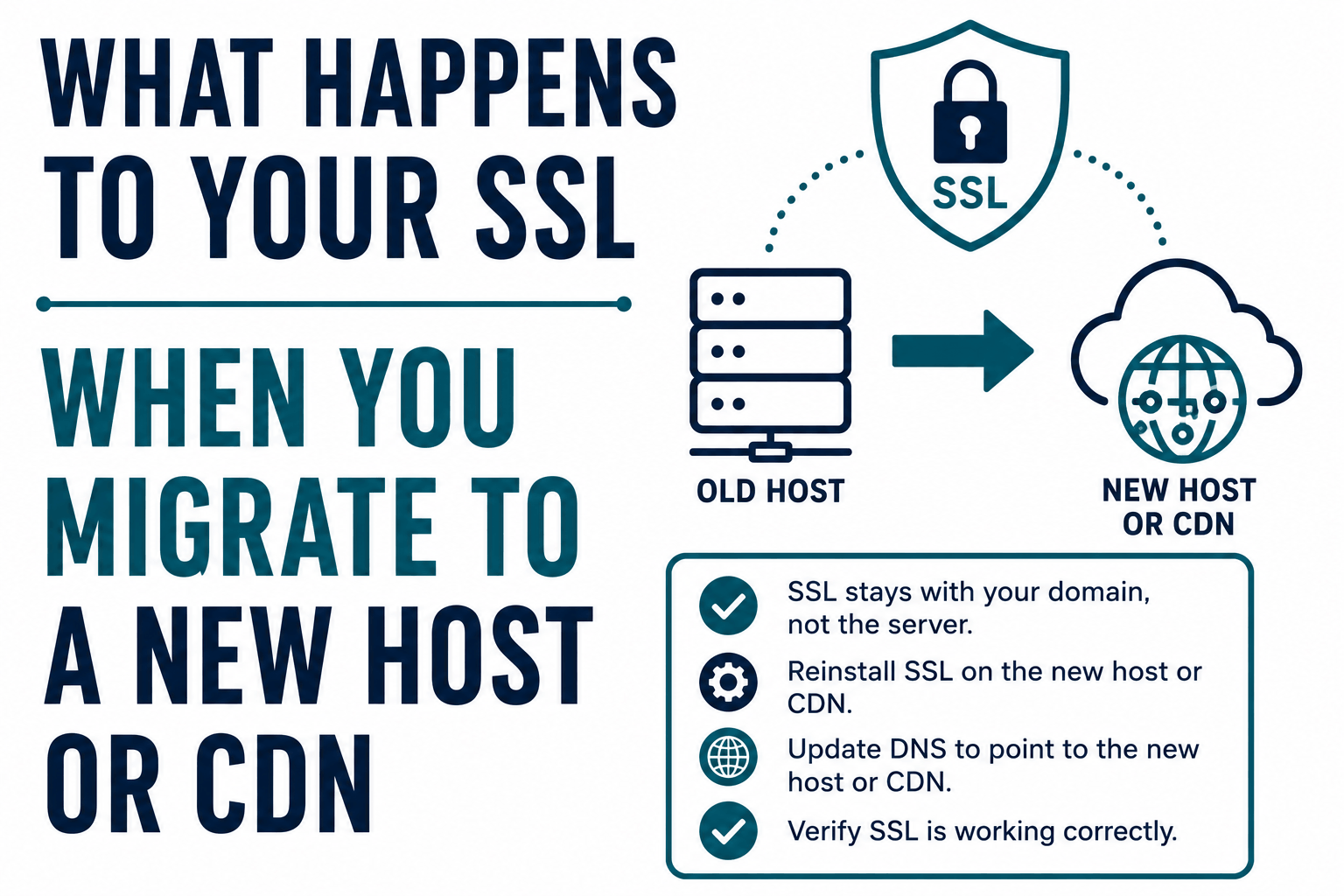
SSL certificates are tied to specific infrastructure in ways that most migration guides do not explain. Moving a website to a new host, adding a CDN, or switching from one cloud provider to another affects your SSL in different ways depending on where your certificate was issued, whether you have access to the private key, and how your new infrastructure handles TLS termination.
The core question that determines everything: do you have access to the private key for your current certificate? If yes, and the certificate is still valid, you may be able to transfer it to the new infrastructure. If no, because the certificate was issued and managed by your hosting platform or CDN, you need a fresh certificate on the new infrastructure. Most shared hosting users, all CDN-managed certificate users, and all AWS ACM users fall into the second category.
This guide covers the six most common migration scenarios, what breaks in each, what can transfer, what requires fresh issuance, and the sequencing steps that prevent SSL errors during cutover.
The Foundational Question: Do You Have Your Private Key?
An SSL certificate consists of two parts that must both be present for HTTPS to work: the certificate file (public, can be shared freely) and the private key (secret, must be kept secure). To use a certificate on new infrastructure, you need both. Many hosting environments do not give users access to the private key for certificates they manage.
| Certificate source | Private key accessible to you? | Can transfer to new host? |
| cPanel AutoSSL (Let’s Encrypt) | No: cPanel manages the key internally | No. New certificate must be issued on the new host. |
| cPanel manually imported certificate (you uploaded PEM files) | Yes: you uploaded the key, you have it | Yes, if you saved the key files before migration. |
| Let’s Encrypt via Certbot on VPS (you ran certbot) | Yes: stored in /etc/letsencrypt/live/domain/ | Yes, but reissuing on the new server is simpler and safer. |
| Cloudflare Universal SSL (edge certificate) | No: Cloudflare manages it; you never see the key | No. Cloudflare issues a new edge cert automatically for your domain. |
| AWS ACM certificate | No: ACM manages it internally; cannot be exported | No. Cannot be used outside AWS infrastructure. |
| Commercial CA certificate (DigiCert, Sectigo, etc.) you ordered directly | Yes: CA delivered the key to you at issuance | Yes, can be installed on any server within validity period. |
| Commercial CA certificate ordered through a hosting provider reseller | Maybe: depends on whether the provider gave you the key files | Check your hosting account for downloadable certificate files. |
Even when you technically have access to the private key (for example, a Certbot-managed Let’s Encrypt certificate on a VPS), reissuing a fresh certificate on the new server is usually simpler and lower-risk than transferring the key. Transferring a private key means copying secret material across environments. Reissuing means running a standard validation process. Both result in a working HTTPS site; reissuing avoids the security concern of moving the key.
Scenario 1: Shared Hosting to Shared Hosting (cPanel to cPanel)
This is the most common migration. A site moves from one shared host to another, both running cPanel with AutoSSL. The scenario that catches most users off-guard: the certificate from the old host cannot be transferred, but that is not actually a problem, because the new host will issue its own certificate automatically.
What happens to the old certificate
The AutoSSL certificate on the old host was issued by Let’s Encrypt through cPanel. The private key is managed internally by cPanel and is not accessible to you. You cannot export it. When you leave the old host, the certificate stays with that host and becomes irrelevant once you cancel the account.
What the new host does
Once your DNS is pointing to the new host and your domain is set up on the new hosting account, cPanel’s AutoSSL will issue a new Let’s Encrypt certificate for your domain automatically. This typically happens within minutes to a few hours of the domain becoming reachable on the new server.
The sequencing risk
The gap problem: if you change DNS to point to the new host before AutoSSL has issued the new certificate, visitors arriving at the new server during that window see an SSL error. There is no certificate installed yet for your domain.
The safest sequence: set up the domain on the new host (without cutting DNS), trigger AutoSSL manually from the new host’s cPanel SSL/TLS section, confirm the new certificate is issued and active, then cut DNS over. Many hosts allow you to add a domain to cPanel using a temporary URL or by adding the domain before the DNS change, specifically for this purpose.
Most modern cPanel hosts issue AutoSSL certificates within minutes of a domain being configured. Check your new host’s cPanel, under SSL/TLS, then SSL/TLS Status, to see whether a certificate has been issued for your domain before cutting DNS. If it shows pending, wait before completing the DNS change.
Scenario 2: Adding Cloudflare as a CDN (Origin Server Unchanged)
Adding Cloudflare in front of an existing server does not require any immediate changes to the origin server’s certificate. When Cloudflare’s proxy is enabled for a domain, Cloudflare issues its own edge certificate automatically and presents it to visitors. Visitors connect to Cloudflare’s edge using Cloudflare’s certificate; Cloudflare connects to your origin server separately.
What Cloudflare issues automatically
Cloudflare Universal SSL is issued automatically within minutes of enabling Cloudflare proxy on a domain. It covers the apex domain and the www subdomain. No action is required from you. This edge certificate is Cloudflare-managed and renewed automatically. You do not see the private key.
The SSL mode setting that determines everything
Cloudflare’s SSL/TLS mode setting controls how Cloudflare connects to your origin server. This setting has major consequences:
- Flexible: Cloudflare connects to your origin over plain HTTP, even though visitors see HTTPS to Cloudflare’s edge. The connection between Cloudflare and your origin is unencrypted. Many WordPress sites see redirect loops with this setting. This is a security gap if your server and Cloudflare are not on the same network.
- Full: Cloudflare connects to your origin over HTTPS but accepts any certificate, including self-signed or expired. Provides encryption to the origin but no certificate validation.
- Full (Strict): Cloudflare connects to your origin over HTTPS and requires a valid, trusted certificate. This is the recommended setting. Your origin server must have a valid certificate from a public CA or a Cloudflare Origin Certificate.
When adding Cloudflare to an existing server that already has a valid certificate, set the mode to Full (Strict) immediately. When adding Cloudflare to a server without a valid certificate, set up the origin certificate first, or use a Cloudflare Origin Certificate (a free certificate from Cloudflare trusted only by Cloudflare’s edge, not by browsers directly).
Flexible SSL mode is the most common source of SSL problems after adding Cloudflare. It appears to work because visitors see HTTPS. The origin traffic is actually unencrypted. Additionally, WordPress configured to redirect HTTP to HTTPS will detect that the origin request from Cloudflare is HTTP and issue a redirect, creating an infinite redirect loop. Always set Full (Strict) if your origin has a valid certificate.
Scenario 3: Shared Hosting to VPS or Cloud Server
Moving from managed shared hosting to a self-managed VPS requires setting up SSL from scratch on the new server. The shared hosting certificate does not transfer (private key not accessible). You take over responsibility for certificate issuance, configuration, and renewal.
What needs to be set up on the new VPS
Install a web server (Nginx or Apache) and configure it for HTTPS. Obtain a certificate using Certbot for Let’s Encrypt, or install a purchased certificate. Configure automatic renewal if using Let’s Encrypt. The sequence matters: configure and test HTTPS on the new server before cutting DNS.
An easy way to test HTTPS on the new server before DNS cutover: modify your local machine’s /etc/hosts file (or C:\Windows\System32\drivers\etc\hosts on Windows) to point the domain to the new server’s IP temporarily. Your browser then connects to the new server while global DNS still points to the old server. Verify the certificate works correctly, then cut over DNS.
If you had a paid certificate on the shared host
If you purchased a certificate directly from a CA (not through the hosting provider’s AutoSSL), and you saved the certificate and private key files at the time of purchase, that certificate can be installed on the new VPS. Verify the certificate has sufficient remaining validity. If it expires within 60 days, renew first. Install the certificate, private key, and CA chain files on the new server’s web server configuration.
Scenario 4: Migrating to AWS CloudFront
Moving to CloudFront as a CDN requires a different certificate approach than other CDNs. CloudFront requires ACM certificates stored in the us-east-1 (N. Virginia) region. Certificates from your origin server, your old CDN, or ACM certificates in any other region cannot be used.
Fresh ACM certificate in us-east-1
Request a new public certificate in AWS Certificate Manager in the us-east-1 region. Complete DNS validation (add the CNAME records ACM provides to your DNS). The certificate is issued free of charge and renews automatically. In your CloudFront distribution’s settings, select this certificate under Custom SSL Certificate. The old certificate at the origin can remain or be replaced independently.
Origin certificate still needed
CloudFront terminates TLS at the edge using the ACM certificate. CloudFront then connects to your origin server. If the origin SSL mode is set to HTTPS Only or Match Viewer with HTTPS origin protocol, the origin needs its own valid certificate. This can be the same certificate you had before, a Let’s Encrypt certificate on an EC2 instance, or another ACM certificate (in the same region as the origin) attached to a load balancer in front of the origin.
The us-east-1 requirement for CloudFront ACM certificates surprises many users migrating from other CDNs. An ACM certificate requested in eu-west-1, ap-southeast-1, or any region other than us-east-1 will not appear in CloudFront’s certificate selection. Always request CloudFront ACM certificates in us-east-1 regardless of where your users or origin are located.
Scenario 5: Migrating Away From AWS (ACM Certificates Cannot Transfer)
AWS ACM certificates are tied to AWS infrastructure. They cannot be exported, downloaded, or installed on non-AWS servers. The private key is managed by AWS and is never accessible. If you are moving your site off AWS entirely, the ACM certificate cannot follow.
Before cutting DNS away from AWS, obtain a certificate from an alternative source for the new infrastructure. Let’s Encrypt via Certbot on a VPS, a purchased certificate from a commercial CA, or a certificate from the new hosting provider’s managed SSL service. Install and verify HTTPS on the new infrastructure first. After DNS cutover, the ACM certificate becomes unused and will eventually expire harmlessly.
Scenario 6: Switching Between CDN Providers
CDN-issued edge certificates never transfer between CDN providers. Every CDN manages its own certificates for its edge network. Cloudflare Universal SSL, Fastly’s managed TLS, Akamai’s edge certificates, CloudFront ACM certificates: each is generated and controlled by the respective CDN and cannot be moved.
The practical implication: when switching CDNs, the new CDN provisions its own edge certificate for your domain automatically, typically within minutes of your domain being configured. There is usually no certificate gap at the edge. The gap risk is at the origin if you are also changing origin infrastructure simultaneously.
Migrating from one CDN to another while keeping the same origin server is the cleanest scenario: add the new CDN, configure it to use the same origin, verify HTTPS works through the new CDN (using a test hostname or by pointing one DNS record temporarily), then cut the main DNS over. The old CDN’s edge certificate is never needed again.
The HSTS Preload Complication
If your domain is on the HSTS preload list, any SSL gap during migration is significantly more consequential. HSTS preloading means browsers enforce HTTPS for your domain before making any connection, with no click-through option. An SSL error on a preloaded domain completely blocks access for browsers that have the preload data, with no way for users to override it.
Check whether your domain is on the HSTS preload list before migrating: visit hstspreload.org and search your domain. If it is listed, the SSL must be fully configured and working on the new infrastructure before DNS is cut over. There is no tolerance for even a brief SSL gap during the DNS propagation window.
If includeSubDomains was set in your HSTS header on the old server, all subdomains are subject to the same HTTPS enforcement. Every subdomain that receives traffic must have working SSL on the new infrastructure before cutover.
Never cut DNS for an HSTS-preloaded domain before HTTPS is fully working on the new infrastructure. The consequences of an SSL gap on a preloaded domain are severe: browsers block the site with no click-through bypass, and the only fix is restoring HTTPS, which may take additional time after DNS propagates. For HSTS-preloaded domains, run a complete HTTPS verification on the new infrastructure first using /etc/hosts testing or a staging subdomain.
Pre-Migration SSL Checklist
Before cutting DNS to new infrastructure:
- Confirm whether your current certificate’s private key is accessible to you
- If transferring a certificate, locate the certificate file, private key file, and CA chain file
- Verify the certificate has at least 60 days remaining validity (if less, renew before migrating)
- Set up and verify HTTPS on the new infrastructure using /etc/hosts testing before touching DNS
- Check whether your domain is on the HSTS preload list (hstspreload.org)
- If using Cloudflare, confirm the SSL/TLS mode is Full (Strict) before enabling proxy
- If migrating to AWS CloudFront, request an ACM certificate in us-east-1 ahead of time
- If migrating away from AWS, obtain a replacement certificate before DNS cutover
- Document the current DNS TTL values and lower them to 300 seconds at least 24 hours before migration (to reduce DNS propagation delay)
Post-Migration SSL Verification
After cutting DNS:
- SSL Labs test: Run ssllabs.com/ssltest on your domain. Confirm A or A+ grade, no chain issues, and TLS 1.2/1.3 support. This tests from an external perspective.
- Certificate details check: Click the padlock in Chrome or Firefox. Confirm the certificate issuer, validity dates, and covered domain names match what you installed.
- HTTP to HTTPS redirect: Test that http://yourdomain.com redirects to https://yourdomain.com with a 301 status.
- Mixed content scan: Open developer tools (F12, Console tab) and reload the site. Any HTTP resources on HTTPS pages show mixed content warnings.
- Subdomain verification: Test each subdomain that receives traffic. A wildcard certificate covers all subdomains; SAN-based certificates only cover explicitly listed ones.
- Certificate monitoring: Update your certificate monitoring tool with the new certificate’s expiry date and confirm alerts are set.
Frequently Asked Questions
Can I transfer my SSL certificate to a new host?
It depends on whether you have access to the private key. Certificates issued and managed by your hosting platform (cPanel AutoSSL, Cloudflare, AWS ACM) cannot be transferred because the private key is managed internally and not accessible to you. Certificates you ordered directly from a CA (DigiCert, Sectigo, etc.) and received as PEM files can be installed on any new server within their validity period. For Let’s Encrypt certificates managed by Certbot on a VPS, transferring is technically possible but reissuing on the new server is simpler and avoids copying secret key material.
Will there be an SSL gap when I migrate?
There can be, depending on the migration sequence. If you cut DNS to the new server before HTTPS is configured and working on it, visitors who arrive during DNS propagation may see SSL errors. The mitigation is to set up and verify HTTPS on the new server before changing DNS, using /etc/hosts local testing or a staging hostname. Once HTTPS is confirmed working on the new infrastructure, cut DNS and the gap is effectively zero. The DNS propagation window (the time when different users see different DNS responses) is reduced by lowering TTL in advance.
Does my Cloudflare SSL certificate transfer if I change my origin server?
Yes and no. Cloudflare’s edge certificate (Universal SSL) covers the connection between visitors and Cloudflare’s edge. That certificate is managed by Cloudflare for your domain and remains active regardless of what origin server is behind it. When you change your origin server, the edge certificate is unaffected. What you need to update is the origin server IP in Cloudflare’s DNS settings, and ensure the new origin server also has a valid certificate if your Cloudflare SSL mode is set to Full (Strict).
What happens to my SSL certificate if I add Cloudflare to my existing site?
Cloudflare issues its own Universal SSL edge certificate for your domain automatically when you enable Cloudflare proxy. Your existing origin server certificate remains in place and should continue to be used. The critical setting to configure is Cloudflare’s SSL/TLS mode under SSL/TLS settings: set it to Full (Strict) if your origin has a valid certificate, which tells Cloudflare to connect to the origin over HTTPS and validate the origin certificate. Avoid Flexible mode, which creates a security gap and causes redirect loops with WordPress.

