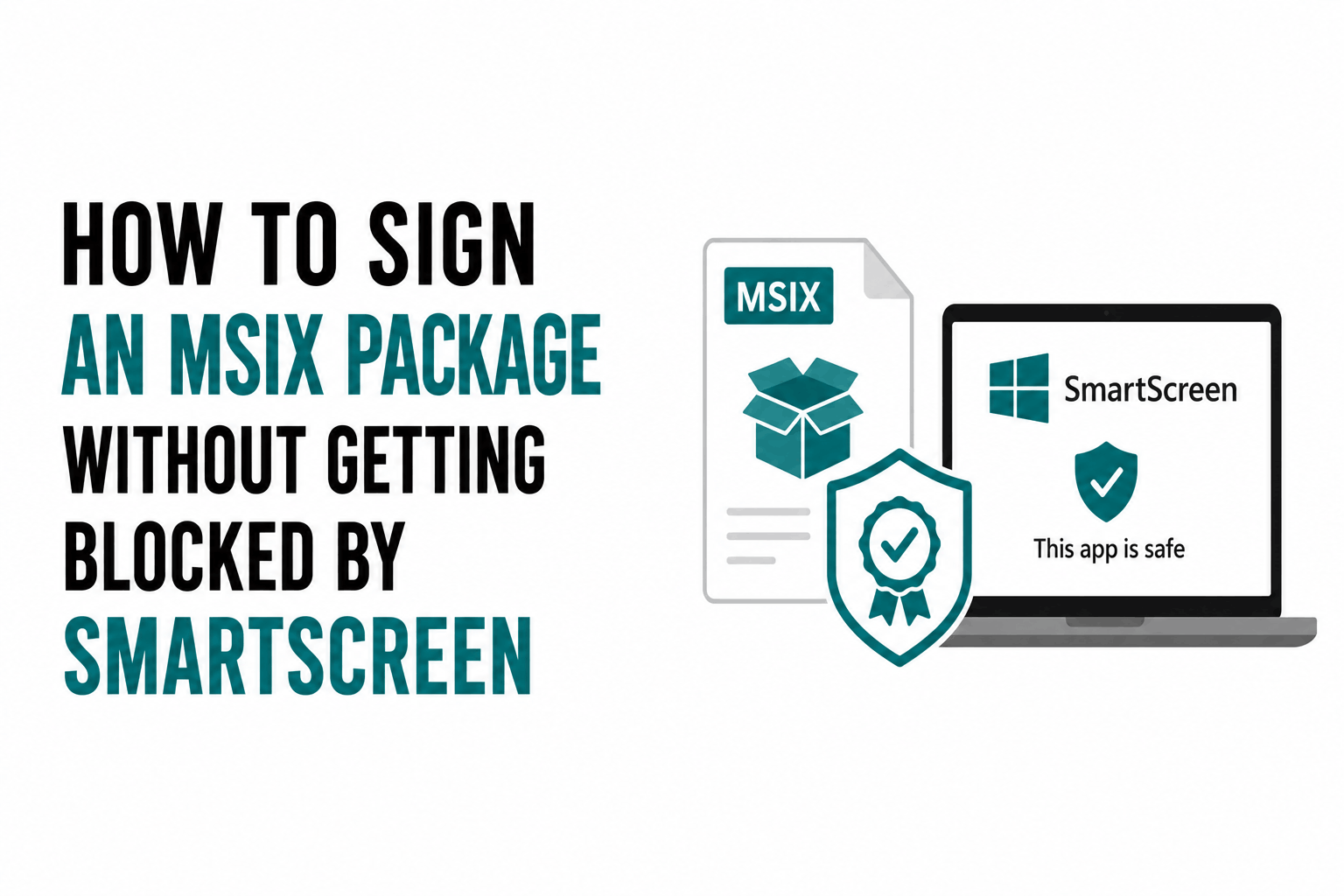
MSIX package signing has two separate problems that developers often conflate. The first is making the package installable at all: the certificate must be trusted on the installation machine and the publisher name in the manifest must match the certificate’s Subject exactly. The second is making Windows and SmartScreen accept the package without warnings or blocks during installation and execution.
Solving the first problem (can it install) is a prerequisite for solving the second (will it be trusted). Getting both right requires understanding how MSIX signing differs from traditional .exe Authenticode signing, how SmartScreen evaluates MSIX packages, and what distribution paths minimize SmartScreen friction.
How MSIX Signing Differs From Traditional .exe Signing
MSIX signing uses the same signtool.exe and the same X.509 certificate infrastructure as Authenticode .exe signing, but with important differences in what gets signed and what is verified.
When you sign an .exe file, signtool embeds a digital signature into the PE file’s certificate table section. The signature covers the executable’s content. The certificate’s publisher name is displayed to users in UAC dialogs and SmartScreen warnings, but Windows does not strictly enforce that the publisher name matches any other declared value.
When you sign an MSIX package, signtool signs the entire package as an opaque blob. More importantly, Windows enforces that the Subject field in the signing certificate matches character-for-character the Publisher attribute in the package’s AppxManifest.xml Identity element. If they do not match, the package cannot install at all, regardless of certificate validity. This is a stricter and more specific requirement than .exe signing.
The MSIX publisher name enforcement means that signing and packaging are coupled in a way that .exe signing is not. With .exe signing, you sign after you build. With MSIX, the manifest publisher must be set to match the certificate before the package is created, because changing the manifest after package creation would break the package structure and require rebuilding. Getting the publisher name right in the manifest at packaging time, before signing, is essential.
Setting the Publisher Name Correctly
The Publisher attribute in AppxManifest.xml must be the full Subject distinguished name from the signing certificate, in the exact format the CA placed it. Not just the CN component: the full DN string including all attributes (O, L, S, C, and any others the CA included).
| # Step 1: Get the exact Subject DN from your signing certificate:
> certutil -dump YourCertificate.cer # Look for the line: Subject: CN=Your Company, O=Your Org, L=City, S=State, C=US # Copy the full string after ‘Subject: ‘
# Or from a PFX file: > certutil -dump -p YourPassword YourCertificate.pfx | findstr /i “Subject:”
# Step 2: Set this EXACT string in AppxManifest.xml: # <Identity Name=”com.yourcompany.yourapp” # Publisher=”CN=Your Company, O=Your Org, L=City, S=State, C=US” # Version=”1.0.0.0″ />
# Step 3: Sign the MSIX package after building: signtool sign /fd sha256 /a /tr http://timestamp.digicert.com /td sha256 YourApp.msix
# Or with explicit certificate file: signtool sign /fd sha256 /f YourCert.pfx /p YourPassword /tr http://timestamp.digicert.com /td sha256 YourApp.msix
# Verify the signature: signtool verify /pa /v YourApp.msix |
After signing, the package cannot be modified. If you discover a manifest error after signing, you must rebuild the package from source with the corrected manifest and re-sign. Attempting to modify a signed MSIX breaks the signature and the package will not install.
How SmartScreen Evaluates MSIX Packages
SmartScreen evaluates MSIX packages through a different model than it uses for traditional .exe files, but the underlying principles are similar: file reputation, publisher reputation, and distribution source reputation all contribute.
MSIX-specific reputation factors
For MSIX packages downloaded and installed outside the Microsoft Store (sideloading), SmartScreen evaluates:
- Package family name: The package family name is a combination of the package name and a hash of the publisher certificate. This becomes the stable identity for reputation purposes. Packages installed from the same publisher with the same name accumulate reputation under this identifier.
- Publisher certificate reputation: The same publisher certificate reputation model that applies to .exe files applies to MSIX. A publisher who has distributed many packages with positive reputation signals carries that reputation to new packages.
- File hash and package content: Each unique MSIX package has a unique hash. New packages start with no file-level reputation regardless of publisher history.
- Download source reputation: Packages downloaded from recognized domains with positive reputation receive better initial treatment than packages from newly registered or unknown domains.
The installation trust requirement
Unlike .exe files (where SmartScreen shows a warning but the user can proceed), MSIX installation is blocked entirely if the signing certificate is not trusted on the machine. The user cannot click through. The installation simply does not proceed.
For certificates from major public CAs (DigiCert, Sectigo, SSL.com, GlobalSign) whose roots are in the Windows trust store, this is automatically satisfied. For self-signed certificates or certificates from private CAs, the certificate must be manually installed in the machine’s Trusted People or Trusted Root certificate store before the MSIX will install. This makes self-signed certificates impractical for distributing to users outside a managed enterprise environment.
Distribution Paths: How They Affect SmartScreen Behavior
| Distribution path | SmartScreen behavior | Certificate requirement | Notes |
| Microsoft Store | No SmartScreen friction; Microsoft re-signs the package | OV or standard certificate for upload; Subject must match Store account Publisher ID | Microsoft’s signing replaces yours for distribution; users never see your cert |
| winget (Windows Package Manager) | Reduced SmartScreen friction after catalog validation | OV certificate from trusted CA required; package validated by winget maintainers | Winget catalog submission is free; validation adds trust signal |
| Direct download (sideloading) | Full SmartScreen evaluation; new packages may be warned or blocked | OV or EV from trusted public CA required; certificate must be in Windows trust store | Same reputation-building timeline as .exe files; warns on first downloads |
| Enterprise deployment (Intune, SCCM, Group Policy) | SmartScreen typically not evaluated for managed deployments | Certificate from any trusted CA or even self-signed if cert is deployed via MDM | Enterprise MDM can deploy the signing certificate to machines alongside the package |
The winget Path: Lower SmartScreen Friction Without the Store
The Windows Package Manager (winget) is Microsoft’s command-line package manager for Windows. Submitting your MSIX package to the winget community repository (github.com/microsoft/winget-pkgs) gives your package a validation signal that reduces SmartScreen friction in several ways.
When a package is installed via winget, Windows receives context that the package came from a validated catalog rather than a direct download from an unknown source. The winget catalog maintainers review submissions for basic quality and authenticity. This acts as a positive distribution channel signal in SmartScreen’s evaluation.
The winget submission process requires: a valid MSIX or installer package, a signing certificate from a trusted public CA, a YAML manifest describing the package, and a pull request to the winget-pkgs repository. The community review process typically takes a few days to a week. Once accepted, the package is installable via winget install YourPublisher.YourPackage and benefits from the catalog’s reputation.
For MSIX packages targeting developers and technical users, winget submission is often more effective than waiting for SmartScreen reputation to build organically through direct downloads. The winget install path generates positive telemetry for your package in a way that differs favorably from direct download signals. Even if your primary distribution is your website, having the package in the winget catalog provides a low-friction installation path that builds reputation faster.
Self-Signed for Development, Trusted CA for Production
During development and internal testing, a self-signed certificate is appropriate for MSIX signing. The self-signed certificate must be installed in the Trusted People or Trusted Root store on each test machine, which you can do once on your development machines.
For any distribution beyond your own development machines, including beta testers, early access users, or any public distribution, use a certificate from a public CA with roots in the Windows trust store. Self-signed certificates prevent installation for any user who has not manually installed the certificate, which is not a viable distribution approach.
| # Create a self-signed certificate for development testing (PowerShell):
> $cert = New-SelfSignedCertificate -Type Custom -Subject “CN=Your Company (Dev)” -KeyUsage DigitalSignature -FriendlyName “MSIX Dev Cert” -CertStoreLocation “Cert:\CurrentUser\My” -TextExtension @(“2.5.29.37={text}1.3.6.1.5.5.7.3.3”, “2.5.29.19={text}”)
# Export the certificate to install on test machines: > Export-Certificate -Cert $cert -FilePath “dev_cert.cer”
# Install on test machine (run as Admin): > Import-Certificate -FilePath “dev_cert.cer” -CertStoreLocation “Cert:\LocalMachine\TrustedPeople”
# Sign the MSIX with the self-signed cert (development only): > signtool sign /fd sha256 /sha1 <cert_thumbprint> /tr http://timestamp.digicert.com /td sha256 YourApp.msix
# Get the thumbprint: > Get-ChildItem Cert:\CurrentUser\My | Where-Object {$_.Subject -like “*Your Company*”} | Select-Object Thumbprint, Subject |
Frequently Asked Questions
My MSIX installs fine but SmartScreen shows a warning when users try to run the app after installation. Why?
SmartScreen evaluates both the installation phase and the execution phase for MSIX packages. Installation SmartScreen evaluates the package itself. Execution SmartScreen evaluates the running application. If the installed app’s main executable shows SmartScreen warnings at runtime, the executable inside the package may itself need Authenticode signing separate from the MSIX package signature. Sign both the MSIX package and the .exe files inside it. This is particularly relevant for MSIX packages that wrap traditional .exe applications via the Desktop App Converter or MSIX Packaging Tool.
Does signing my MSIX with an EV certificate give better SmartScreen results than OV?
As of August 2024, Microsoft removed the EV certificate SmartScreen instant reputation bypass. OV and EV code signing certificates now build MSIX SmartScreen reputation identically through distribution volume and positive telemetry. EV certificates are not needed for better SmartScreen results on MSIX packages. Use OV for standard MSIX distribution. EV is only technically required for kernel-mode driver signing, which MSIX-distributed applications typically do not involve.
My MSIX is in the winget catalog but users still see SmartScreen warnings. Why?
Winget catalog inclusion helps but does not eliminate SmartScreen evaluation for new packages or publishers. If the package is new to the winget catalog and your publisher has limited reputation history, some SmartScreen friction may still occur initially. Additionally, if users are downloading the MSIX directly from your website rather than using winget install, the download channel’s reputation applies rather than the winget catalog’s. Encourage winget installation and allow time for publisher reputation to accumulate from catalog downloads.
How long does MSIX SmartScreen reputation take to build?
MSIX reputation building follows a similar timeline to .exe SmartScreen reputation: days to a few weeks for high-volume packages, weeks to months for niche packages. The winget catalog path typically produces faster reputation accumulation than pure direct download because it generates positive catalog-sourced telemetry signals. Package family name reputation accumulates across versions, so releasing updates does not start the reputation clock over for your publisher identity.